
caffeinate -i in front of the command, for example caffeinate -i ./backup.sh. Your Mac stays awake until the command finishes, then sleeps normally. For a download in an app, run caffeinate -i on its own and press Control-C when it's done. With no Terminal at all: on a MacBook, plug it in and turn on System Settings → Battery → Options → Prevent automatic sleeping on power adapter when the display is off. Closing a MacBook lid still puts it to sleep; see the lid section for that.Why your Mac sleeps in the middle of a download
macOS puts the Mac to sleep after a while without keyboard or trackpad input. Apps can tell macOS they're busy (it's called a power assertion), and many do while playing video or running a backup. But plenty of downloads, scripts, builds and command-line tools don't, so as far as macOS can tell, nobody is using the Mac and it goes to sleep. Network transfers stop, the script pauses, and some downloads have to start over.
Two things often get mixed up here. The display turning off doesn't stop anything; your download carries on with a black screen. The Mac sleeping is what stops the work. So the goal is to stop system sleep while letting the display turn off, which also saves power.
Method 1: the built-in setting
This is the no-Terminal option, and it's in Apple's own guide. It works while the Mac is plugged in.
On a MacBook
- Plug your MacBook into power.
- Open System Settings and click Battery in the sidebar.
- Click Options.
- Turn on Prevent automatic sleeping on power adapter when the display is off.
On an iMac, Mac mini, Mac Studio or Mac Pro
- Open System Settings and click Energy.
- Turn on Prevent automatic sleeping when the display is off.
Method 2: caffeinate in Terminal
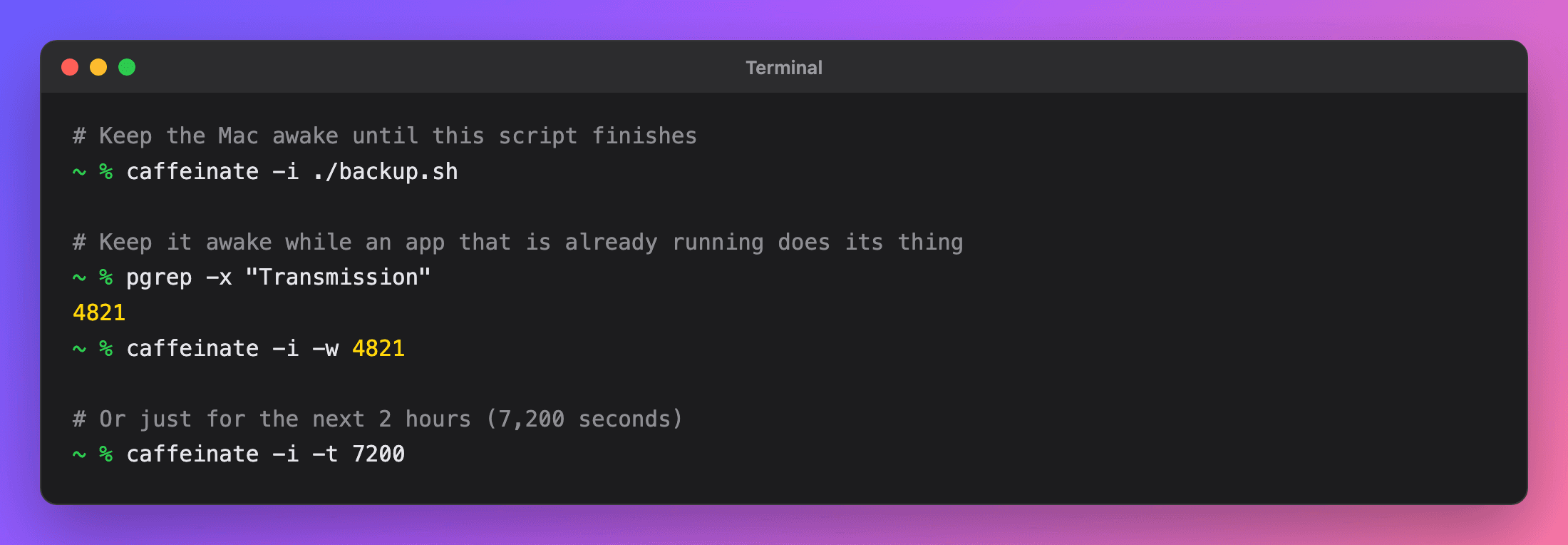
Every Mac has a small built-in tool called caffeinate that keeps it awake for as long as you ask. It's the most precise option, because it can tie "awake" to a specific job. Open Terminal (Command-Space, type Terminal, press Return) and pick the line that fits.
Until a script or command finishes
Put caffeinate -i in front of the command. The Mac stays awake while it runs and is free to sleep the moment it ends:
caffeinate -i ./backup.shThe same works for a download you start from Terminal:
caffeinate -i curl -O https://example.com/big-file.zipUntil an app finishes
For a download in an app that's already running, give caffeinate that app's process id with -w. It waits for the app to quit, then lets the Mac sleep. Replace Transmission with the app's name:
pgrep -x "Transmission"     # prints the app's process id, e.g. 4821
caffeinate -i -w 4821
For a set time
To keep the Mac awake for two hours (7,200 seconds) and then stop on its own:
caffeinate -i -t 7200Or run caffeinate -i on its own and press Control-C when you're done.
Which flag do you need?
| Flag | What it does | Use it when |
|---|---|---|
-i | Stops idle system sleep. The display can still turn off. | Downloads, scripts, builds. The one you usually want. |
-d | Keeps the display on too. | You need to watch the screen, such as a presentation or a progress bar. |
-s | Stops system sleep, but only on AC power. | A desk Mac that should never sleep while plugged in. |
-m | Stops the disk idle sleeping. | Rarely needed on Macs with an SSD. |
-t 3600 | Stops after that many seconds. | You know roughly how long the job takes. |
-w PID | Stops when that process exits. | An app or command that's already running. |
These come straight from the caffeinate manual page (type man caffeinate to read it). With no flags at all, caffeinate behaves like -i.
How to check what is keeping your Mac awake
Not sure caffeinate is working, or wondering why your Mac won't sleep? macOS keeps a list. This one-liner shows who is holding sleep off right now:
pmset -g | grep " sleep "And this one lists every assertion with the app that owns it and why:
pmset -g assertions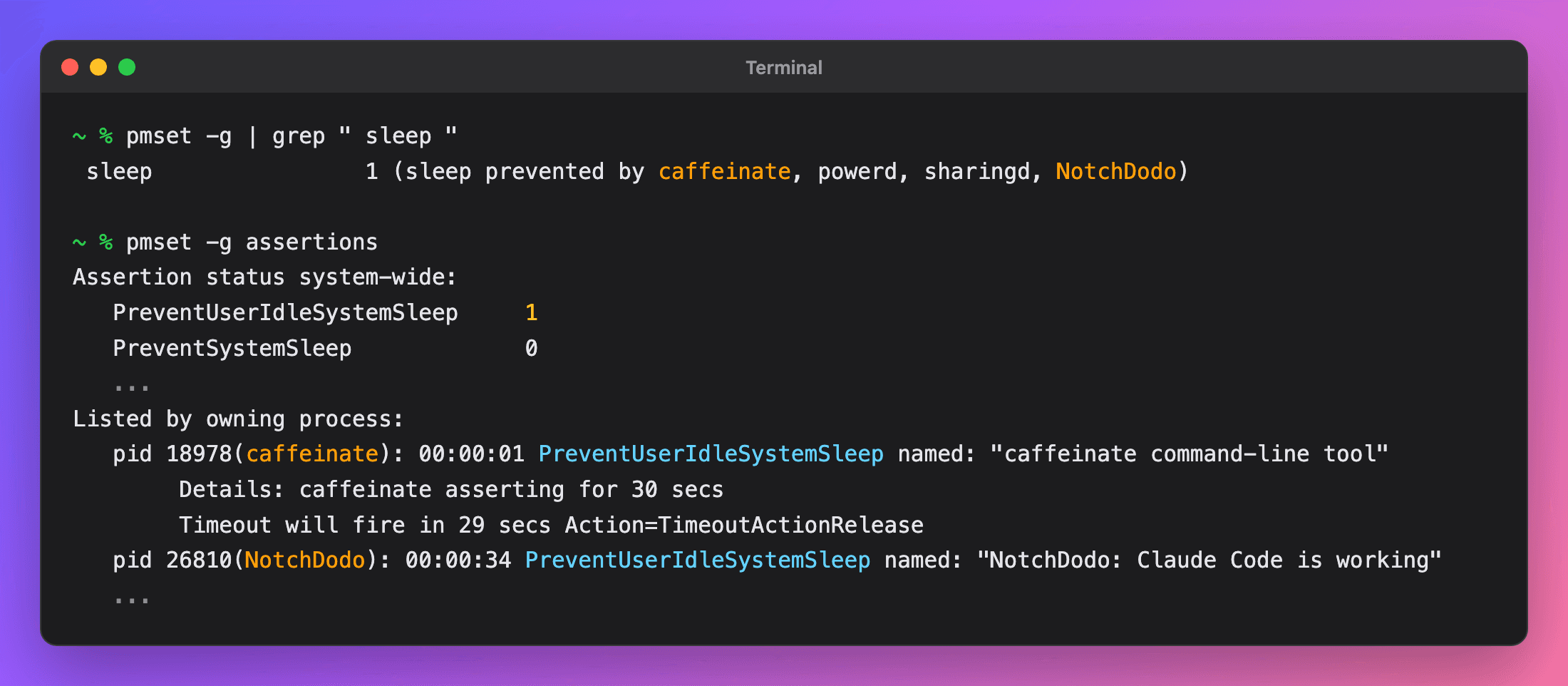
Look for PreventUserIdleSystemSleep 1 in the summary and the owners listed below it. You'll often see system processes there too, such as powerd while the display is on; that's normal.
Method 3: a free keep-awake app
If you'd rather click than type, these menu bar apps wrap the same macOS feature in a button:
- Amphetamine (free, Mac App Store). The most flexible: sessions for a set time, until an app quits, or until a file finishes downloading, plus triggers that start a session automatically.
- KeepingYouAwake (free, open source). A coffee cup in the menu bar with preset durations. Simple and lightweight.
Both are good. The trade-off is one more icon in a menu bar that, on a MacBook with a notch, may already be hiding icons behind it.
Method 4: one tap in your notch
NotchDodo turns the MacBook notch into a small dashboard, and keep-awake is built in two ways.
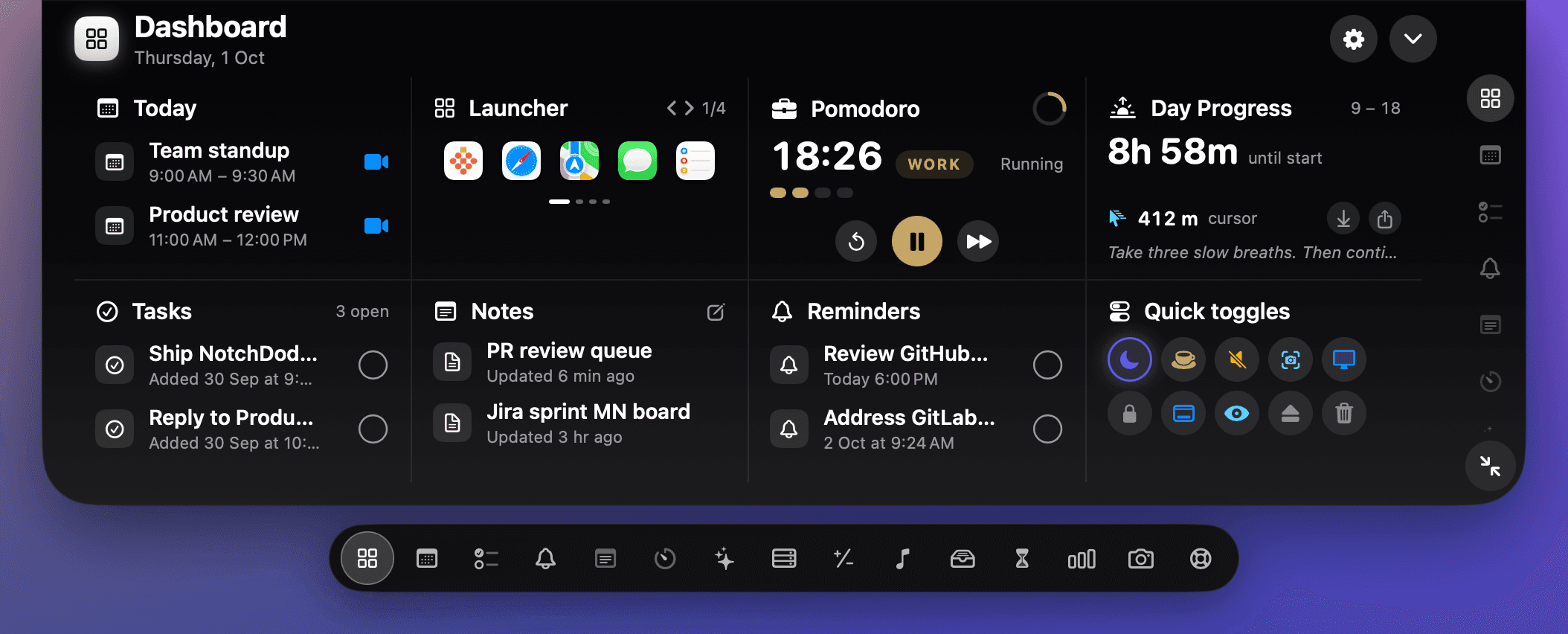
The Keep awake toggle
In the Dashboard's Quick toggles, tap the coffee cup and the Mac and its display stay awake until you tap it again.Right-click the cup for more:
- For 30 minutes to 4 hours, then it lets go.
- Until downloads finish. It watches your Downloads folder, lets the screen turn off, and lets the Mac sleep 20 seconds after the last download lands.
- Until an app quits. Pick any open app from the list.
When it turns itself off, a banner tells you why, with a button for one more hour. Under the hood it runs macOS's own caffeinate, so it shows up in pmset -g assertions like the command above.
Automatic while AI agents work
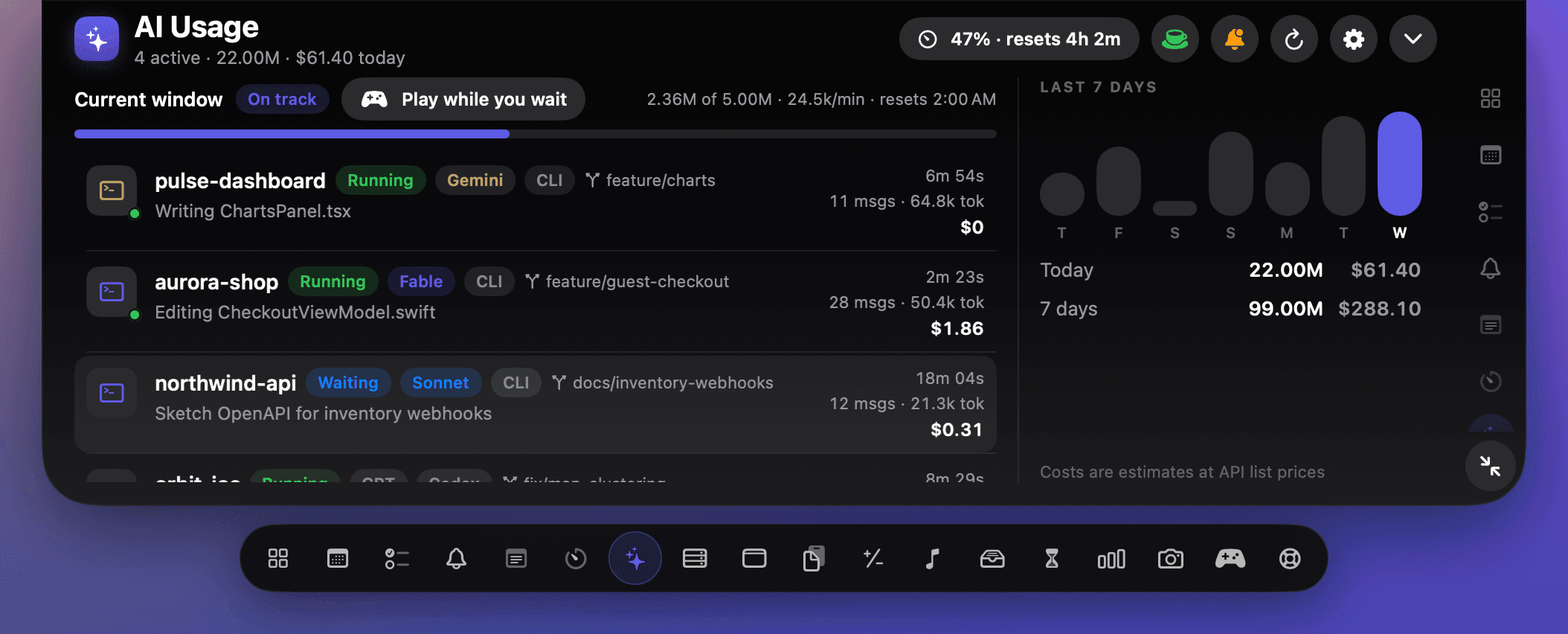
If your long-running job is an AI coding agent such as Claude Code, Codex, Gemini CLI or Grok, you don't have to remember anything. NotchDodo notices when an agent is working, keeps the Mac awake (the display can still turn off), and lets it sleep once every agent has finished. Lock the screen and walk away, and it can even put the Mac to sleep when the work is done instead of hours later. More about keeping your Mac awake for AI agents.
What about closing the lid?
Closing a MacBook's lid puts it to sleep, and the System Settings switch, caffeinate and NotchDodo don't change that. caffeinate stops idle sleep, not lid sleep. Your options:
- Leave the lid open and let the display turn off. The simplest and safest.
- Closed-display mode. Apple supports running a MacBook closed when it's connected to power, an external display, and a keyboard and mouse or trackpad. See Apple's guide to using a MacBook with an external display (and our full guide to keeping a MacBook awake with the lid closed).
- Amphetamine has its own closed-display mode that can keep a MacBook awake with the lid shut. Watch the heat if it's in a bag or on a soft surface.
- Not recommended:
sudo pmset -a disablesleep 1is an undocumented setting that stops lid sleep. A closed MacBook in a bag can get very hot, and the setting stays on until you run it again with0. Use it only if you know why you need it.
Which method should you use?
| System Settings | caffeinate | Amphetamine | NotchDodo | |
|---|---|---|---|---|
| No Terminal needed | Yes | No | Yes | Yes |
| Stops on its own when the job ends | No | Yes | Yes | Yes |
| Works on battery | No, plugged in only | Yes | Yes | Yes |
| Keeps the lid-closed Mac awake | No | No | Yes, its closed-display mode | No |
| Where you turn it on | Settings app | Terminal | Menu bar | The notch |
| Cost | Free, built in | Free, built in | Free | $9.99 one-time, with 17 more tools |
For a one-off download, caffeinate -i is hard to beat: nothing to install and it switches itself off. If you never want a desk Mac to sleep while plugged in, use the System Settings switch. If you run AI agents or long jobs every day, having it handled from the notch saves you thinking about it.
More guides
- Claude Code usage limits explained: the 5-hour window, weekly limits, and how to check what's left: How Claude Code usage limits work on Pro, Max and Ultra: the 5-hour session window, the weekly limit and when each resets, what happens at the limit, and how to check what's left with /usage, claude.ai, ccusage or NotchDodo.
- Codex usage limits: how to check what's left and when it resets: How Codex usage limits work on ChatGPT Plus, Pro and Business: the 5-hour and weekly windows, how to check them with /status, and what to do when you hit one.
- Menu bar icons hidden behind the MacBook notch? 5 ways to get them back: Why Mac menu bar icons disappear behind the MacBook notch and 5 ways to get them back: Command-drag and Menu Bar settings, a spacing command, macOS 27's built-in button, Bartender or free managers like Ice and Thaw, and NotchDodo.
- Dynamic Island for Mac: how to get one on your MacBook in 2026: Does a Mac have a Dynamic Island? Only the new OLED MacBook Pro. Here's how to get one on any MacBook with a notch app: setup steps, free options and fixes.
- How to keep your MacBook awake with the lid closed (and when you shouldn't): Keep a MacBook awake with the lid closed: Apple's closed-display (clamshell) mode with an external monitor, pmset disablesleep, Amphetamine, why caffeinate can't do it, and the safer lid-open way to run Claude Code or scripts overnight.
- Best notch apps for Mac in 2026: 8 apps compared: The best MacBook notch apps in 2026 compared on price, features and who each is for: NotchDodo, Droppy, Notchy, Boring Notch, Alcove, NotchNook, DynamicLake and Seam.
- Why is my Mac fan so loud? How to find the app and check CPU temperature: Find the app making your Mac fan loud with Activity Monitor or Terminal, check CPU temperature and fan speed on Apple silicon and Intel, and quiet it down.
- How to get notified when Claude Code needs your approval on Mac: Three ways to get an alert when Claude Code is waiting for permission or your next prompt on a Mac: the terminal bell, a Claude Code hook with a native macOS notification, and an alert in your MacBook notch.
- Claude Code usage tracker for Mac: See Claude Code tokens, estimated cost and your 5-hour window in the MacBook notch. Reads local logs, uploads nothing. Codex and Gemini CLI too.
- NotchNook alternative: NotchDodo vs NotchNook: An honest side-by-side of the two notch apps: tools, live activities, AI agent tracking, privacy and price.
- NotchDodo vs Boring Notch: What you get with the free, open source Boring Notch and what NotchDodo adds on top: calendar, Pomodoro, Claude Code alerts and more.
Sources
- Mac User Guide: Set sleep and wake settings for your Mac
- MacBook Pro User Guide: Connect an external display
- The
caffeinate(8)andpmset(1)manual pages in macOS (man caffeinate,man pmset)
Mac, MacBook and macOS are trademarks of Apple Inc. Amphetamine and KeepingYouAwake belong to their developers. NotchDodo is an independent app and is not affiliated with Apple.