
Why menu bar icons disappear behind the notch
The Mac menu bar has two halves. On the left are the menus of whichever app is in front: the Apple menu, the app's name, File, Edit and so on. On the right are status icons: the clock, Control Center, Wi-Fi, and the little icons that apps such as password managers, VPNs, cloud drives and utilities add. Those status icons are laid out from the clock towards the left.
On a MacBook with a notch, the middle of that bar is a camera housing, not screen. macOS treats it as a gap and doesn't wrap or shrink icons around it. So once you have more icons than fit between the notch and the clock, the next ones land in the gap and simply aren't drawn. Apps with long menus, such as Xcode, Photoshop or Excel, leave even less room, which is why icons can appear in one app and vanish when you switch to another.
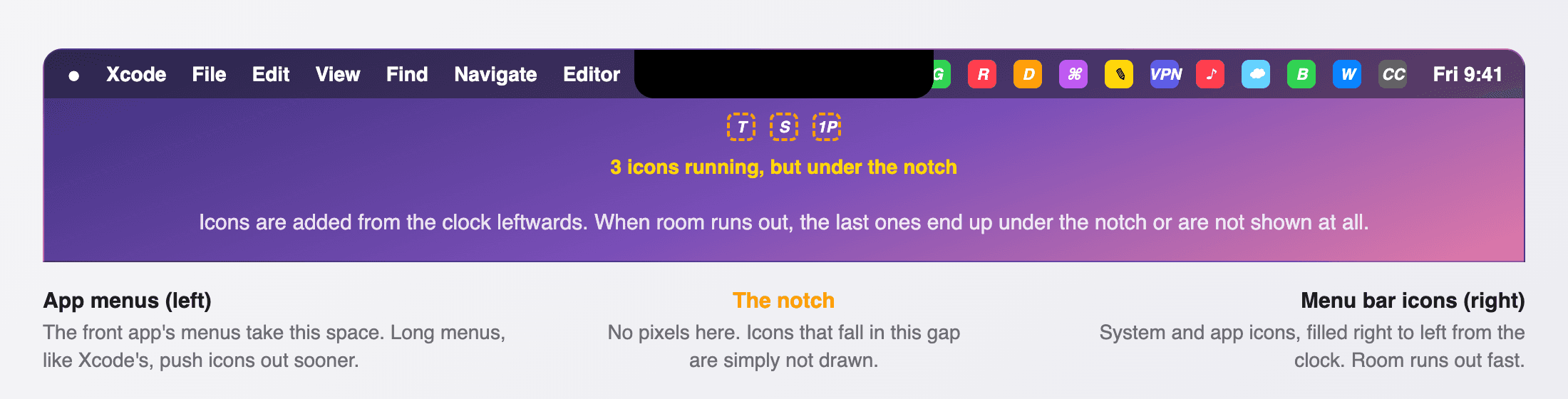
Nothing is broken and the apps are still running; you just can't see or click their icons. Until macOS 27, Apple gave you no built-in way to reach them, which is why so many people search for this. The fixes below go from free and built in to dedicated apps.
Fix 1: remove and rearrange icons
The most reliable fix is fewer icons. It costs nothing and survives every macOS update.
Quit what you aren't using
Every running app with a menu bar icon takes a slot. Quit apps you don't need right now (from the app's icon or Dock icon, or with Activity Monitor if the icon itself is hidden) and the hidden icons move out from behind the notch. Also check each app's settings: many have a "Show in menu bar" option you can turn off while keeping the app.
Command-drag icons out or into place
Apple's own Mac User Guide documents two shortcuts that work on any visible icon:
- Remove an icon: hold Command (⌘) and drag the icon down out of the menu bar, then let go.
- Rearrange icons: hold Command and drag an icon left or right. Put the ones you use most next to the clock so they are the last to be pushed under the notch.
Switch off system items in Menu Bar settings
System icons take room too. On recent macOS (Apple's current guide covers macOS 27):
- Choose Apple menu → System Settings, then click Menu Bar in the sidebar.
- Under Menu Bar Controls, turn off items you don't need in the bar, such as Spotlight, Siri, Now Playing, Screen Mirroring or Weather. For items like Focus or Now Playing you can pick Show When Active instead of Always Show.
- Under Allow in the Menu Bar, untick third-party apps whose icons you don't want.
On macOS 15 Sequoia and earlier, the same switches for system items are under System Settings → Control Center. Anything you turn off is still one click away in Control Center itself.
Fix 2: squeeze the icons closer together
macOS leaves generous space between menu bar icons. Two hidden settings, NSStatusItemSpacing (the gap between icons) and NSStatusItemSelectionPadding (the highlight around each one), let you shrink it, which can fit several more icons before the notch. Apple doesn't document them, but 9to5Mac, developer Jesse Squires and others have published the same commands. Open Terminal and run:
defaults -currentHost write -globalDomain NSStatusItemSpacing -int 8
defaults -currentHost write -globalDomain NSStatusItemSelectionPadding -int 8
Then log out and back in (Apple menu → Log Out) to see the change. 9to5Mac uses 8 for both; Jesse Squires uses 12 and 8. Values somewhere around 6 to 12 are what most guides suggest, so try a few and pick what still looks comfortable. To check what's set:
defaults -currentHost read -globalDomain NSStatusItemSpacing
defaults -currentHost read -globalDomain NSStatusItemSelectionPadding
An error saying the domain or key doesn't exist just means you haven't set it yet; neither key is set by default. To undo everything and go back to Apple's spacing, delete both keys and log out and back in again:
defaults -currentHost delete -globalDomain NSStatusItemSpacing
defaults -currentHost delete -globalDomain NSStatusItemSelectionPadding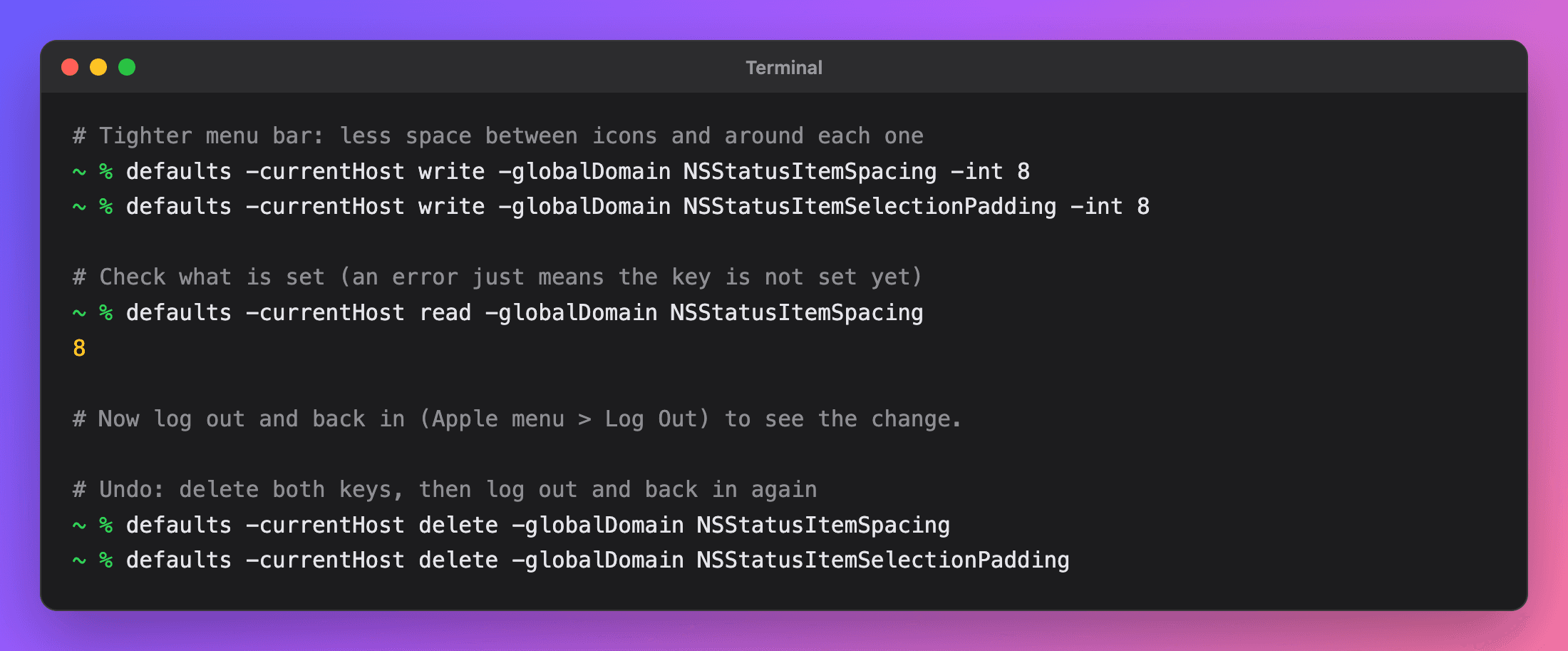
killall SystemUIServer instead of logging out, but others report that doesn't apply the change, so logging out is the safe route. Because these keys are undocumented, Apple can ignore them in any update. macOS 27 redrew the menu bar, and we couldn't confirm the trick still has an effect there; it is reported to work on earlier versions. It only buys space, too: add enough icons and you are back under the notch.Fix 3: the built-in button in macOS 27
macOS 27 finally adds an overflow control. When the menu bar runs out of room, macOS shows a small double-arrow button beside the notch. Click it and the hidden icons slide out into view on the left side of the bar, covering the app menus for a moment; click again and they collapse. Its accessibility name is Show Hidden Menu Bar Items.
It is a real improvement, but it is basic. Hands-on write-ups note that you don't choose which icons get hidden (macOS hides whatever doesn't fit), and there are no rules, groups or search. At the time of writing, Apple's Mac User Guide pages on the menu bar don't describe the button yet, so the details here come from independent coverage. If you are on macOS 26 Tahoe or earlier, there is no such button; use the other fixes.
Fix 4: a menu bar manager (Bartender and free alternatives)
Menu bar managers have been the standard answer for years. They split your icons into always-visible and hidden groups, put the rest behind a button or a second bar, and usually let you search for an icon. The main options:
- Bartender (paid, with a 4-week free trial). The most complete: it hides what the notch would cover with a way to bring it back, plus triggers that show an icon when something changes, a Command Bar to search menu bar items, a separate Bartender Bar, spacing presets, styling and profiles. Its site says Bartender 7 is built for macOS 27, with Bartender 6 for macOS 26. In 2024 the original developer sold it to a company called Applause Group without telling users at first, which MacRumors and AppleInsider covered critically because older versions asked for Screen Recording permission. The new owners said screen data never left the Mac, and the Bartender 7 page now says Screen Recording isn't required.
- Ice (free, open source, GPL-3.0). The best-known free Bartender alternative for macOS 14 and later. On macOS 27, its GitHub issue #954 ("Ice in menu bar not working anymore") has been open since June 2026 with no maintainer reply at the time of writing.
- Thaw (free, open source, GPL-3.0). A community fork of Ice that is actively developed: Thaw 2 for macOS 15 to 26 and a Thaw 3 beta for macOS 27, according to its GitHub page.
- Hidden Bar (free, open source, MIT). The simplest: a divider you place among your icons and an arrow that collapses everything to its left. It needs macOS 13 or later. Reports on macOS 27 are mixed, so check its GitHub releases.
Why the macOS 27 turbulence? According to developers and users tracking it, macOS 27 changed how the menu bar is drawn, and the undocumented method these apps relied on to find and move each icon stopped working the same way. Expect fixes to keep landing, and check each app's page before you buy or install.
Fix 5: open hidden icons from the notch
NotchDodo turns the notch itself into a small dashboard, so it seemed fair that it should help with the icons the notch hides. Its Menu Bar tool:
- Lists every menu bar icon from your running apps, right to left the way the bar reads from the clock.
- Marks the hidden ones with an orange dot under a "Hidden behind the notch" heading. It counts an icon as hidden when the notch covers it, when it's squeezed under the front app's menus, or when it's off the screen.
- Opens any of them with a click. On macOS 27 it presses macOS's own Show Hidden Menu Bar Items button, then clicks the icon you picked so its menu opens where you'd expect. On earlier macOS it asks the app to open its menu directly; a few apps don't allow that, and NotchDodo tells you when that happens.
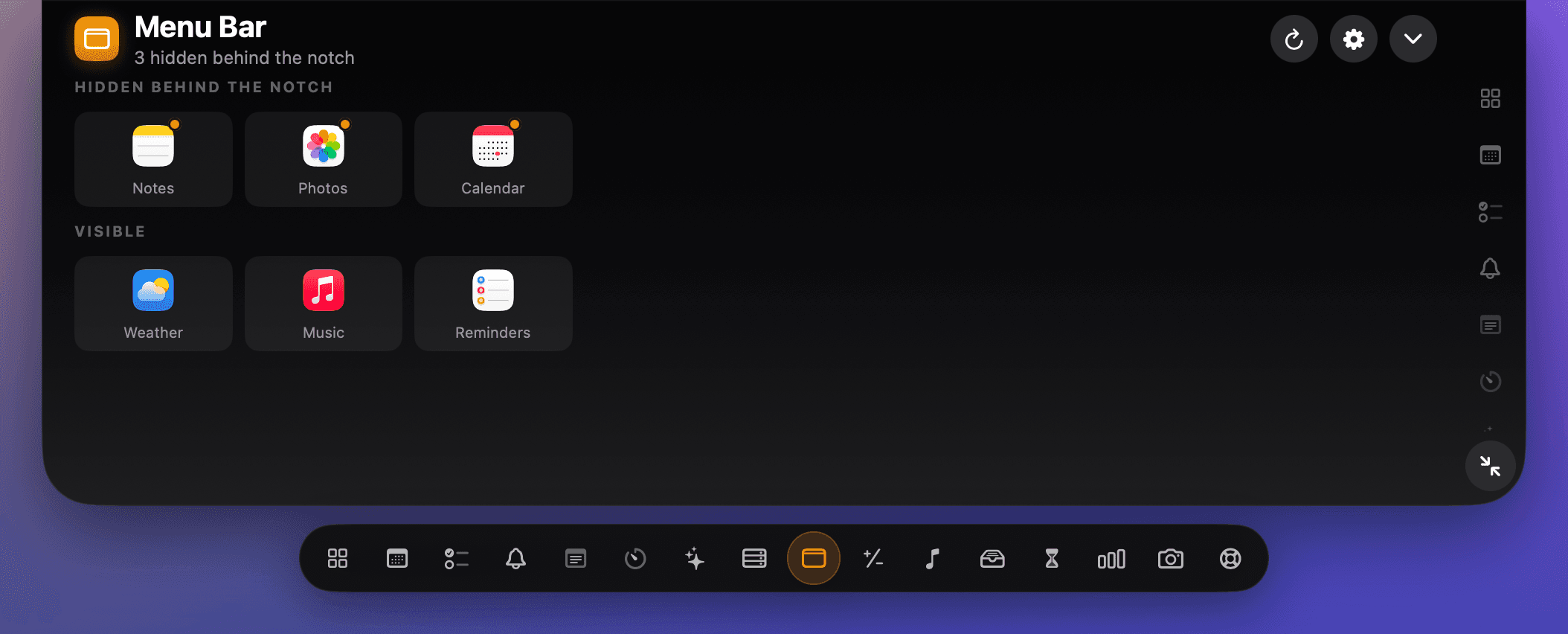
It reads the icons with the macOS Accessibility API, the same way menu bar managers do, so it asks for Accessibility access the first time you open it. Everything happens on your Mac. To be clear about what it isn't: it doesn't hide, group or reorder icons. If you want a tidy, curated menu bar, use Fix 1 or a manager from Fix 4; NotchDodo is for reaching the icon you need without moving anything.
Menu Bar is one of NotchDodo's 18 tools, alongside things like a calendar, clipboard history, a keep-awake toggle and a Claude Code usage tracker. If you are comparing notch apps, see the best notch apps for Mac, or how it stacks up against NotchNook and Boring Notch.
Which fix should you use?
| Remove icons | Spacing command | macOS 27 button | Menu bar manager | NotchDodo | |
|---|---|---|---|---|---|
| Built into macOS | Yes | Yes, undocumented | Yes, macOS 27 only | No | No |
| Keeps every icon | No, you drop some | Yes, until it fills up | Yes | Yes | Yes |
| Choose what gets hidden | Yes | No | No | Yes | No |
| Open a hidden icon in one click | No | No | Two clicks | Yes | Yes |
| Survives macOS updates | Yes | Not guaranteed | Yes | Depends on the app | Depends on the app |
| Cost | Free | Free | Free | Bartender paid; Thaw, Ice, Hidden Bar free | $9.99 one-time, with 17 more tools |
Start with Fix 1: most crowded menu bars have a few icons nobody clicks. If you're on macOS 27, the built-in button covers the occasional hidden icon. If you want full control over what shows, a manager is still the best tool; Thaw is the free one to try first on macOS 27. And if you already use NotchDodo, or want the notch to do more than hide things, the Menu Bar tool gets you to any icon from the notch.
One more tip: if the icon you lost belongs to a keep-awake app, you may not need it at all. Our guide to stopping your Mac sleeping during a download covers the built-in caffeinate command, and NotchDodo can keep your Mac awake automatically while AI agents work.
More guides
- Claude Code usage limits explained: the 5-hour window, weekly limits, and how to check what's left: How Claude Code usage limits work on Pro, Max and Ultra: the 5-hour session window, the weekly limit and when each resets, what happens at the limit, and how to check what's left with /usage, claude.ai, ccusage or NotchDodo.
- Codex usage limits: how to check what's left and when it resets: How Codex usage limits work on ChatGPT Plus, Pro and Business: the 5-hour and weekly windows, how to check them with /status, and what to do when you hit one.
- Dynamic Island for Mac: how to get one on your MacBook in 2026: Does a Mac have a Dynamic Island? Only the new OLED MacBook Pro. Here's how to get one on any MacBook with a notch app: setup steps, free options and fixes.
- How to keep your MacBook awake with the lid closed (and when you shouldn't): Keep a MacBook awake with the lid closed: Apple's closed-display (clamshell) mode with an external monitor, pmset disablesleep, Amphetamine, why caffeinate can't do it, and the safer lid-open way to run Claude Code or scripts overnight.
- How to stop your Mac sleeping while a download or script runs: Four ways to keep a Mac awake until a download, backup or script finishes: a System Settings switch, the caffeinate command, free apps like Amphetamine, and NotchDodo. Plus what to do about the lid.
- Best notch apps for Mac in 2026: 8 apps compared: The best MacBook notch apps in 2026 compared on price, features and who each is for: NotchDodo, Droppy, Notchy, Boring Notch, Alcove, NotchNook, DynamicLake and Seam.
- Why is my Mac fan so loud? How to find the app and check CPU temperature: Find the app making your Mac fan loud with Activity Monitor or Terminal, check CPU temperature and fan speed on Apple silicon and Intel, and quiet it down.
- How to get notified when Claude Code needs your approval on Mac: Three ways to get an alert when Claude Code is waiting for permission or your next prompt on a Mac: the terminal bell, a Claude Code hook with a native macOS notification, and an alert in your MacBook notch.
- Claude Code usage tracker for Mac: See Claude Code tokens, estimated cost and your 5-hour window in the MacBook notch. Reads local logs, uploads nothing. Codex and Gemini CLI too.
- NotchNook alternative: NotchDodo vs NotchNook: An honest side-by-side of the two notch apps: tools, live activities, AI agent tracking, privacy and price.
- NotchDodo vs Boring Notch: What you get with the free, open source Boring Notch and what NotchDodo adds on top: calendar, Pomodoro, Claude Code alerts and more.
Sources
- Mac User Guide: Use the menu bar on Mac (Command-drag to rearrange or remove)
- Mac User Guide: Change Menu Bar settings on Mac
- 9to5Mac: How to stop menu bar items being hidden behind the MacBook Pro notch
- Jesse Squires: MacBook notch and menu bar fixes
- GeekHampton: Dealing with the MacBook notch in macOS 27
- publicspace.net: macOS 27 menu bar, what changed and which apps broke
- Ice on GitHub, issue #954: Ice not working on macOS 27
- Ice on GitHub, Thaw on GitHub, Hidden Bar on GitHub
- Bartender official site
- AppleInsider: Bartender app's new owner and the lack of transparency (June 2024)
Mac, MacBook and macOS are trademarks of Apple Inc. Bartender, Ice, Thaw and Hidden Bar belong to their developers. NotchDodo is an independent app and is not affiliated with Apple.