
Keep your Mac awake for AI coding agents
Keep your Mac awake while Claude Code works.
Give your agent a two-hour job, lock your Mac and walk away. NotchDodo keeps it awake until the work is done, then puts it to sleep. No timers to set, nothing to remember.
Try it: lock your Mac while the agent works.
Pick an agent, give it a task, then lock up. Switch to Without to see what macOS does on its own.
Claude Code is ready. Give it a task.
Pick an agent
- Sped up: two hours of work take eleven seconds here.
Why your Mac sleeps in the middle of a Claude Code run
macOS puts a Mac to sleep after a few minutes without keyboard or mouse input. A coding agent working in a terminal doesn't count as input, so when you lock up and walk away, the Mac goes to sleep on its usual schedule and takes Claude Code, Codex or Grok with it. The agent freezes mid-task, the API call it was waiting on times out, and you come back hours later to a job that is half done.
On a MacBook running on battery this happens after a couple of minutes. On power, it depends on the settings under System Settings > Battery > Options (Energy on a desktop Mac).
The free way: caffeinate
macOS has a built-in command that holds off sleep. Start your agent through it:
caffeinate -i claude-i stops idle system sleep for as long as the command after it runs, so the Mac stays awake until you quit Claude Code. Swap in codex, gemini or grok for other agents. To keep it awake for a fixed time instead, in seconds:
caffeinate -i -t 7200It works, with three catches:
- It keeps the Mac awake for the whole session, including the hours the agent sits waiting for your next prompt.
- You have to remember to start every agent through it, or run it before you leave.
- It never puts the Mac to sleep when the work is done. A finished job leaves the Mac on until the timer ends or you come back.
NotchDodo removes all three: it holds the Mac awake only while an agent is actually working, starts by itself, and puts the Mac to sleep a minute after the work finishes while you're away.
How NotchDodo keeps your Mac awake for agents
- 1It notices when an agent starts working
NotchDodo watches for coding agents on your Mac. A working agent animates, runs tools and writes its session log; one waiting at the prompt sits nearly still. Ten seconds of real work and NotchDodo takes a standard macOS power hold.
- 2You lock up and walk away
The display turns off and the lock screen works as usual. Only system sleep is held off, so the agent keeps reading, editing and running tests while you make dinner.
- 3It lets go the moment the work is done
When every agent has gone quiet for 90 seconds, or Claude Code says its turn is over, the hold is released. If your Mac is locked, NotchDodo puts it to sleep a minute later instead of leaving it on all night.
Keep your Mac awake for Claude Code, Grok, Codex and more.
Nothing to install in any of them. Start an agent the way you always do and NotchDodo spots it.
claudegrokcodexgeminicursor-agentcopilotopencodeampqwengooseAlso Aider, Crush, Factory Droid, Kiro, Cline, Kilo Code, Auggie, and the Grok Bot, Claude, Codex desktop apps.
See when your Mac is being kept awake.
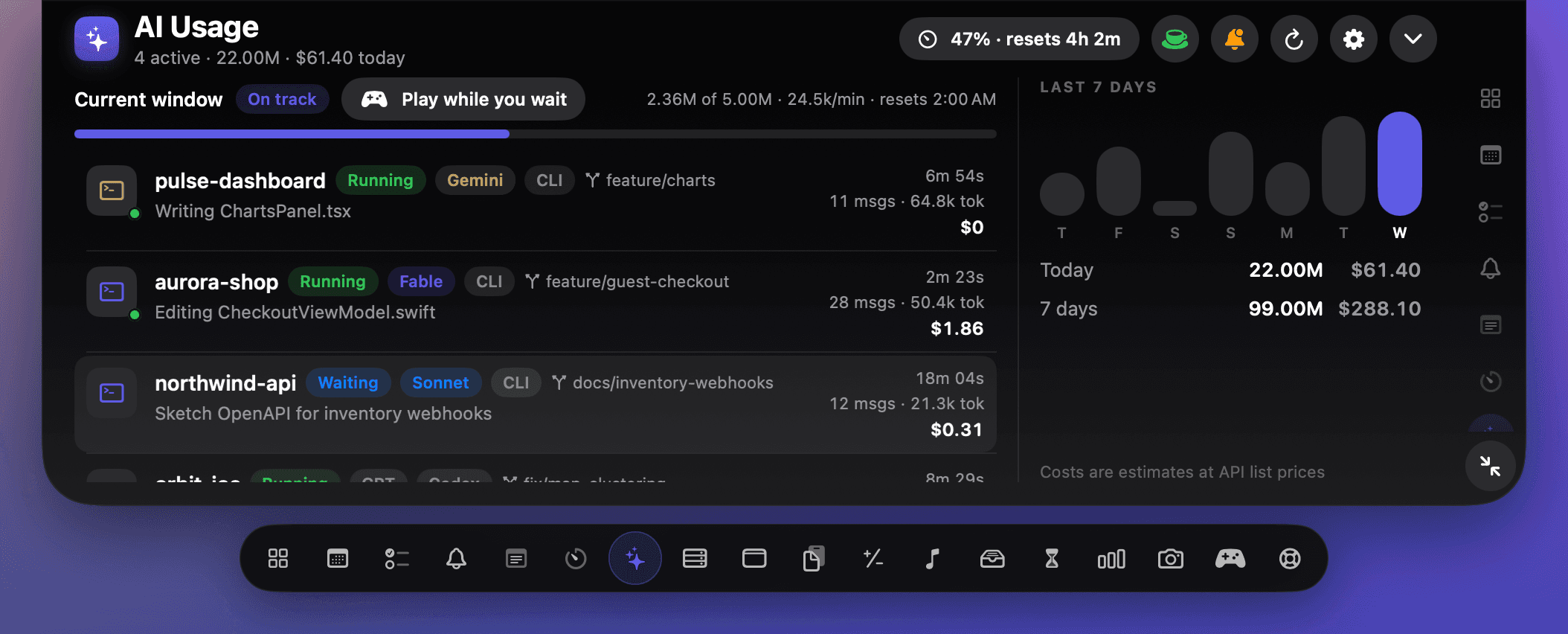
Open AI Usage and the cup in the header turns green while NotchDodo is holding your Mac awake. Hover it to see which agent is working. Click it to switch the whole thing off.
- Settings > Keep awake for agents has every switch: stay awake, sleep when done, and the battery floor.
- Settings also shows the last time NotchDodo put your Mac to sleep, and after which agent.
- On by default from version 0.1.31.
NotchDodo vs caffeinate and keep-awake timers
| caffeinate and keep-awake timers | NotchDodo | |
|---|---|---|
| Starts by itself when an agent starts working | No, you start it | Yes |
| Lets the Mac sleep while the agent waits for you | No, it runs until the timer ends | Yes |
| Sleeps the Mac when the work is done and you're away | No | Yes, one minute later |
| Knows about Claude Code, Grok, Codex and Gemini CLI | No | Yes, plus ten more |
| Display can still turn off | Depends on the app | Yes |
| Lets go on low battery | Some apps | Yes, below 15% (you pick) |
Questions
Why does my Mac go to sleep while Claude Code is running?
macOS sleeps after a few minutes without keyboard or mouse input, and an agent working in a terminal doesn't count as input. Lock your Mac or step away and it sleeps on schedule, freezing Claude Code, Codex or Grok mid-task until you wake it again.
How do I keep my Mac awake while Claude Code runs, for free?
Start it through macOS's built-in caffeinate command: caffeinate -i claude. The Mac stays awake until you quit Claude Code, including the time it spends waiting for you, and it won't sleep by itself when the job is done. NotchDodo does it automatically, only while the agent is working, and sleeps the Mac when it finishes.
How does NotchDodo know an agent is working and not just open?
Three signals, all read on your Mac. A working agent uses CPU across its process tree (it animates its spinner and runs tools), while one waiting at the prompt sits near idle. Claude Code, Codex and Gemini CLI also write their session logs as they work. And if you have Claude Code alerts turned on, Claude Code's own end-of-turn hook tells NotchDodo the turn is over straight away. An agent needs ten seconds of sustained work before NotchDodo holds the Mac awake, so a passing blip doesn't count.
Will it put my Mac to sleep while I'm using it?
No. NotchDodo only ever puts the Mac to sleep when the screen is locked and an agent was working while it was locked. Unlock, or let an agent start again, and the one-minute countdown is cancelled.
Does the screen stay on?
No. NotchDodo holds off system sleep only, the same kind of power hold macOS uses for a download or a backup. The display turns off and the Mac locks on its usual schedule.
What happens if I close the lid?
On battery, closing the lid puts any MacBook to sleep, whatever app asks it not to. Getting around that needs administrator rights, so NotchDodo doesn't try. Keep the lid open and lock the screen instead. With an external display, power and a keyboard connected, macOS already keeps a closed MacBook awake.
Which agents does it work with?
Claude Code, Grok, Codex, Gemini CLI, Cursor Agent, Copilot CLI, OpenCode, Amp, Qwen Code, Goose, Aider, Crush, Factory Droid, Kiro, Cline, Kilo Code, Auggie, plus the Grok Bot, Claude, Codex desktop apps. Agents run through node, bun or Python are recognised too.
Does it work with Grok Bot?
Yes. Grok Bot counts as working while it is busy on your Mac, and the grok command line tool is recognised by name. If Grok runs a task in xAI's cloud instead of on your Mac, there is nothing to keep awake: the task carries on even while your Mac sleeps.
Is this the same as caffeinate or a keep-awake app?
Those keep the Mac awake for as long as you tell them to, usually on a timer, and you have to remember to start them. NotchDodo starts and stops by itself with the agent's work, lets the Mac sleep while the agent waits for your reply, and can put the Mac to sleep the moment the job is done.
What about my battery?
On battery, NotchDodo lets go of the hold below 15% so an overnight run can't drain the Mac flat. Pick 10, 20 or 30%, or never, in Settings.
Does anything leave my Mac?
No. NotchDodo reads process names and CPU time from macOS and your agents' local log files. There is no account, no hook into your code and nothing uploaded.
Is this a separate app?
No. Keep awake for agents is part of NotchDodo's AI Usage tool, one of eighteen tools that turn your MacBook notch into a Dynamic Island. One purchase gets all of them, and it is switched on as soon as you install.
Lock up. Let it finish. Let it sleep.
One-time $9.99 for 2 Macs, every update included. macOS 14 Sonoma or later on Apple silicon. Macs without a notch get a simulated one.