How to keep your MacBook awake with the lid closed (and when you shouldn't)
You want the MacBook shut on the desk driving a monitor, or a job running overnight with the lid down. macOS can do the first out of the box. The second takes a workaround, and sometimes the better answer is to leave the lid open.
The short answerA MacBook stays awake with the lid closed in closed-display mode: connect it to power, an external display and an external keyboard and mouse or trackpad, wait for the desktop on the display, then close the lid. Without a monitor, the options are an app such as Amphetamine's Closed-Display Mode or the undocumented sudo pmset -a disablesleep 1 (undo it with 0). caffeinate does not stop lid sleep. To run a script or Claude Code overnight, it's safer to leave the lid open, run caffeinate -i and turn the display off.
Why a MacBook sleeps when you close the lid
macOS has two separate reasons to sleep. Idle sleep happens after a period with no keyboard or trackpad input, and apps can hold it off with a power assertion (that's what caffeinate and keep-awake apps do). Lid sleep happens the moment you close the lid, and those assertions don't stop it. That's why a download keeps going with the screen off but stops as soon as you shut the laptop.
The System Settings switch "Prevent automatic sleeping on power adapter when the display is off" is about idle sleep too, so it doesn't change what the lid does. If you only need the Mac awake with the lid open, our guide to stopping your Mac sleeping during a download or script covers that in full. This guide is about the lid.
How to use a MacBook closed with an external monitor (closed-display mode)
Apple calls this closed-display mode; most people call it clamshell mode. Apple's MacBook Air and MacBook Pro user guides say that with an external display and accessories like a keyboard and mouse connected, "you can keep working even when the lid is closed." You need:
Power: the power adapter, or a display that charges the Mac over USB-C or Thunderbolt.
An external display or projector.
An external keyboard and mouse or trackpad, USB or Bluetooth.
Closed-display mode needs power, an external display, and an external keyboard and mouse or trackpad.
Steps
With the lid open, connect your keyboard and mouse or trackpad (or pair Bluetooth ones).
Connect the MacBook to power.
Connect the external display. On a Mac laptop with Apple silicon, click Allow if macOS asks to let the display or accessory connect.
When the desktop appears on the external display, close the lid. Press a key or click if the display doesn't wake.
Before you unplug the display later, put the Mac to sleep from the Apple menu.
Apple silicon notes: Mac laptops with Apple silicon can ask you to approve new USB, Thunderbolt and other accessories, and Apple says you need to allow the display, mouse and keyboard before using the Mac with the lid closed. The setting is in System Settings → Privacy & Security → Accessories. And on a MacBook Air or MacBook Pro with the M3 chip, two external displays only work with the lid closed (macOS Sonoma 14.3 or later on the Air, 14.6 or later on the Pro).
If the display stays dark with the lid closed, Apple's first check is that the Mac is connected to power and using an external keyboard and mouse. In closed-display mode the Mac behaves like a desktop, so normal idle sleep still applies; a long job still needs caffeinate or an idle-sleep setting on top.
How to keep a MacBook awake with the lid closed without a monitor: pmset disablesleep
pmset is the built-in command that manages power settings. It accepts a disablesleep setting that isn't listed in its own manual page (man pmset), and with it on, the Mac doesn't sleep at all, including when you close the lid. It needs an admin password:
Terminal
sudo pmset -a disablesleep 1
Check it's on. Look for SleepDisabled 1:
Terminal
pmset -g | grep -i sleepdisabled
And turn it off again when you're done:
Terminal
sudo pmset -a disablesleep 0
Turn lid sleep off, check it, and turn it back on. The last two lines are the safer lid-open alternative.
Why we treat it as a last resort:
It stops every kind of sleep, not just lid sleep, for as long as it's on. Treat it as staying on until you run it with 0.
It's easy to forget. Close the lid tomorrow, drop the MacBook in a bag, and it's still running.
It isn't documented by Apple, so behaviour can change between macOS versions and Mac models. Reports differ on how it behaves on Apple silicon, so check it on your own Mac before trusting it with an unattended job.
On battery, a closed Mac that never sleeps keeps draining until you notice.
Apps that keep a MacBook awake with the lid closed
Amphetamine (free, Mac App Store) has a Closed-Display Mode that keeps a MacBook awake with its lid closed. On Apple silicon, its App Store notes say it forces the built-in display to sleep when folded closed, and that sessions can fail when you connect or disconnect power unless you install Power Protect, a separate free download from the developer. It can also end a session automatically when the battery is low.
Amphetamine Enhancer is an older companion app from the same developer that added a closed-display mode fail-safe and wider process monitoring. Since Amphetamine 5.3, the process monitoring is built into Amphetamine itself; on Apple silicon, Power Protect is the add-on the developer points closed-display users to.
Caffeinated (paid) added a closed-lid option in version 3.2, according to Macworld.
An HDMI dummy plug makes macOS think a display is connected, so the Mac behaves as if it's in closed-display mode. It's a common workaround for headless setups, but it isn't something Apple documents and we haven't tested it.
Does caffeinate work with the lid closed?
No. The caffeinate manual page describes it as creating assertions that prevent the display, the system or the disk from idle sleeping. Closing the lid isn't idle sleep, so caffeinate -i won't keep a closed MacBook awake. Its -s flag ("prevent the system from sleeping") only applies on AC power. In closed-display mode, where the Mac is already running with the lid shut, caffeinate -i does its usual job of stopping idle sleep.
How to keep Claude Code or a script running overnight on a MacBook
For an AI coding agent or a long script, you don't actually need the lid closed. You need the Mac awake and the screen dark. That's fully supported, needs no sudo, and the Mac can cool through the keyboard deck as normal.
Start the job under caffeinate -i, so the Mac can't idle sleep until it ends. For Claude Code:
Terminal
caffeinate -i claude
For a script:
Terminal
caffeinate -i ./overnight-job.sh
If the agent is already running, attach caffeinate to its process id instead:
Terminal
pgrep -x "claude"           # prints the process id, e.g. 5310
caffeinate -i -w 5310
Turn the display off. From another Terminal tab, run:
Terminal
pmset displaysleepnow
Or lock the screen with Control-Command-Q and let the display time out. On keyboards without Touch ID, Control-Shift-Power puts the displays to sleep.
Leave the MacBook open on a hard, flat surface, ideally plugged in.
-i lets the display sleep, so you're not lighting an empty room all night. When the command ends, caffeinate exits and the Mac sleeps normally. For more on agents specifically, see keeping your Mac awake for AI agents.
Where NotchDodo fits (lid open)
To be clear up front: NotchDodo does not keep a Mac awake with the lid closed. It doesn't change sleep settings or use sudo. What it does is the lid-open version above, from the MacBook notch.
Keep awake toggle. Tap the coffee cup in the Dashboard's Quick toggles to keep the Mac and its display awake until you tap again. Right-click for a timer (30 minutes to 4 hours), until downloads finish or until an app quits; those last two let the display turn off. It runs macOS's own caffeinate.
Automatic for AI agents. While Claude Code, Codex, Gemini CLI or another supported agent is working, NotchDodo holds off idle system sleep; the display still turns off and the screen still locks. If you lock the screen and walk away, it can put the Mac to sleep shortly after every agent finishes.
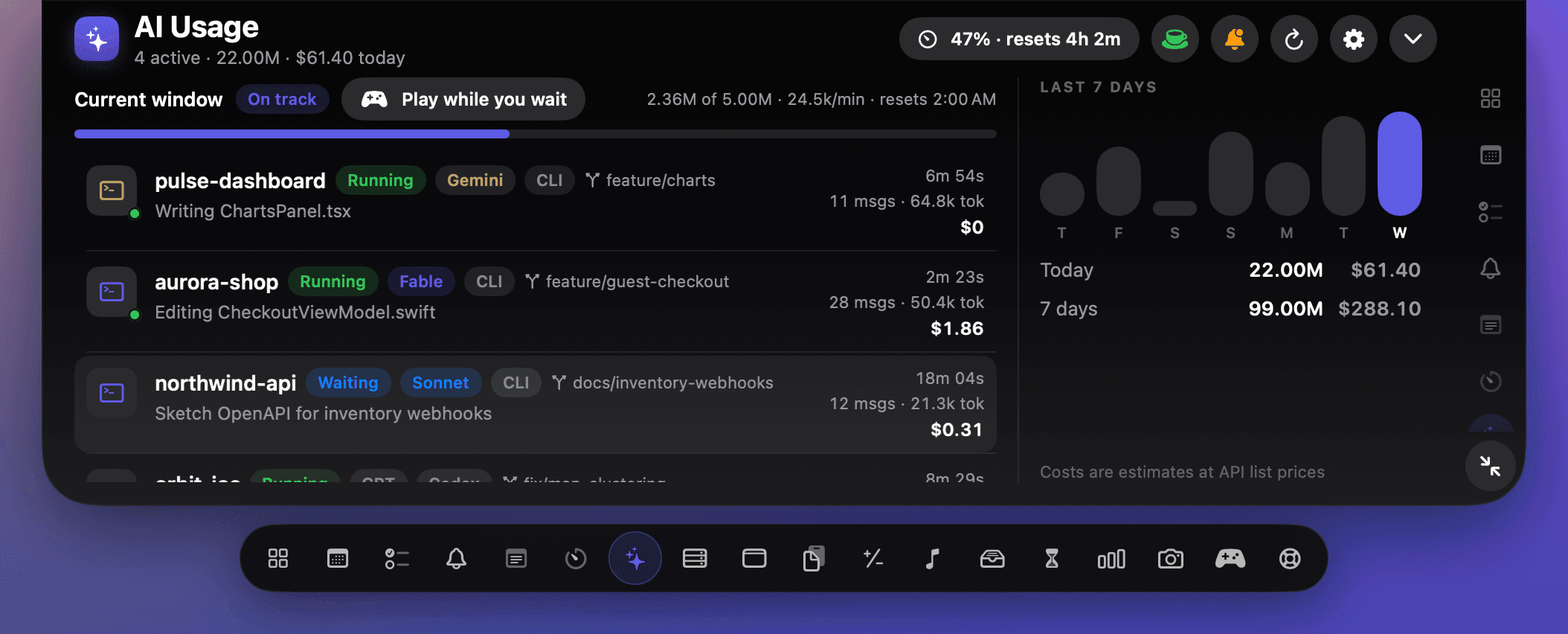
The green cup in AI Usage means agents are running and the Mac is staying awake, lid open. Demo data.
It also shows Claude Code's tokens and 5-hour window in the notch; see the Claude Code usage tracker.
When you shouldn't keep a MacBook awake with the lid closed
Apple says to use a Mac laptop on a stable surface with good ventilation, not in bed, on a pillow or under bedding, and in an ambient temperature between 10 and 35 °C (50 and 95 °F). A bag is the same problem or worse. Our cautious advice:
Never keep a closed MacBook awake in a bag or sleeve. If you used pmset disablesleep or an app's closed-lid mode, turn it off before you pack up.
Prefer power over battery for anything long. Apple's closed-display setup assumes power, and a closed laptop that never sleeps can run its battery down unnoticed.
Use a hard, flat surface, closed or open.
If you don't need the external display, leaving the lid open with the screen off gets you the same result with none of the workarounds.
Which method should you use?
Method
Needs external display
Needs sudo
Safe in a bag
How to undo
Closed-display mode
Yes, plus power and keyboard/mouse
No
No, it's a desk setup
Sleep the Mac, then unplug
pmset disablesleep 1
No
Yes
No
sudo pmset -a disablesleep 0
Amphetamine Closed-Display Mode
No
No (Power Protect install asks for an admin password)
No
End the session
HDMI dummy plug
The plug stands in for one
No
No
Unplug it
Lid open + caffeinate -i
No
No
Not applicable, lid stays open
Ends with the job, or Control-C
NotchDodo (lid open)
No
No
Not applicable, lid stays open
Tap the cup, or it ends on its own
Driving a monitor from a closed MacBook on your desk: closed-display mode. Running Claude Code or a script overnight: lid open with caffeinate -i and the display off. Reach for pmset disablesleep or a closed-lid app only when you really need the lid shut with no monitor, and switch it off afterwards.
Keep your Mac awake from the notch, lid open.Keep it awake for a set time, until downloads finish or until an app quits, and automatically while AI agents work. Plus calendar, clipboard, Pomodoro and more tools. One-time purchase, no subscription.Get NotchDodo for $9.99See all the tools
Menu bar icons hidden behind the MacBook notch? 5 ways to get them back: Why Mac menu bar icons disappear behind the MacBook notch and 5 ways to get them back: Command-drag and Menu Bar settings, a spacing command, macOS 27's built-in button, Bartender or free managers like Ice and Thaw, and NotchDodo.
How to stop your Mac sleeping while a download or script runs: Four ways to keep a Mac awake until a download, backup or script finishes: a System Settings switch, the caffeinate command, free apps like Amphetamine, and NotchDodo. Plus what to do about the lid.
Best notch apps for Mac in 2026: 8 apps compared: The best MacBook notch apps in 2026 compared on price, features and who each is for: NotchDodo, Droppy, Notchy, Boring Notch, Alcove, NotchNook, DynamicLake and Seam.
How to get notified when Claude Code needs your approval on Mac: Three ways to get an alert when Claude Code is waiting for permission or your next prompt on a Mac: the terminal bell, a Claude Code hook with a native macOS notification, and an alert in your MacBook notch.
Claude Code usage tracker for Mac: See Claude Code tokens, estimated cost and your 5-hour window in the MacBook notch. Reads local logs, uploads nothing. Codex and Gemini CLI too.
NotchDodo vs Boring Notch: What you get with the free, open source Boring Notch and what NotchDodo adds on top: calendar, Pomodoro, Claude Code alerts and more.
Mac, MacBook, MacBook Air, MacBook Pro and macOS are trademarks of Apple Inc. Amphetamine, Caffeinated and Claude Code belong to their developers. NotchDodo is an independent app and is not affiliated with Apple.
Frequently asked questions
Can you keep a MacBook awake with the lid closed?
Yes. The way Apple supports is closed-display mode (also called clamshell mode): connect the MacBook to power, an external display and an external keyboard and mouse or trackpad, wait for the desktop to appear on the display, then close the lid. Without an external display, the options are a third-party app such as Amphetamine's Closed-Display Mode or the undocumented sudo pmset -a disablesleep 1 command, both of which carry heat and battery risks.
Does caffeinate keep a Mac awake with the lid closed?
No. caffeinate creates power assertions that stop idle sleep, display sleep or disk sleep. Closing the lid is not idle sleep, so a MacBook still sleeps when you shut it, even with caffeinate -i running. Use closed-display mode, or leave the lid open with the display off.
How do I use my MacBook closed with an external monitor?
Connect your keyboard and mouse or trackpad, connect the Mac to power (or to a display that charges it over USB-C or Thunderbolt), connect the external display, and wait until the desktop appears on it. Then close the lid. On Mac laptops with Apple silicon, allow the display, keyboard and mouse to connect first when macOS asks, so they keep working with the lid shut.
Is it bad to run a MacBook with the lid closed?
Closed-display mode on a desk, plugged in, is a setup Apple supports. What to avoid is a closed MacBook that's kept awake somewhere it can't cool: in a bag, on a bed or under bedding. Apple says to use a Mac laptop on a stable surface with good ventilation and in an ambient temperature of 10 to 35 °C (50 to 95 °F).
How do I undo sudo pmset -a disablesleep 1?
Run sudo pmset -a disablesleep 0 in Terminal and enter your password. Then run pmset -g and check that SleepDisabled is 0 or no longer listed. Treat the setting as staying on until you do this.
Can I keep Claude Code running overnight with the lid closed?
Only in closed-display mode or with a lid-sleep workaround. The simpler and safer way is to leave the lid open, start the agent with caffeinate -i claude so the Mac can't idle sleep, then turn the display off with pmset displaysleepnow or lock the screen with Control-Command-Q. The agent keeps running with the screen dark.
Why does my external display go dark when I close my MacBook?
Apple's troubleshooting steps say a closed Mac laptop needs to be connected to power and using an external keyboard and mouse. On Apple silicon laptops, new accessories may also need to be allowed before they connect. Check both, then disconnect and reconnect the display.
Does NotchDodo keep my Mac awake with the lid closed?
No. NotchDodo's Keep awake toggle and its automatic keep-awake for AI agents stop idle sleep while the lid is open, using macOS's own caffeinate tool and power assertions. Closing the lid still sleeps the Mac unless it's in closed-display mode. NotchDodo doesn't change sleep settings or use sudo.