
/status in the Codex CLI or open chatgpt.com/codex/settings/usage. The 5-hour window resets five hours after the first message that opened it, and the weekly window seven days after the week began. When you run out, wait, use credits, or switch Codex to an API key. Figures here are from OpenAI's docs as of 13 November 2026 and change often.How Codex usage limits work
Codex can bill you in two different ways, and the limits only apply to one of them.
- Signed in with ChatGPT. Codex uses the allowance included in your ChatGPT plan. This is where usage limits, the 5-hour window and the weekly window come in. Codex in the CLI, the IDE extension, the desktop app and Codex cloud all draw from it.
- Signed in with an API key. You pay per token at API rates, with no plan allowance to run out. OpenAI notes that cloud features such as GitHub code review and the Slack integration aren't included this way, and the models you can pick follow what your key has access to.
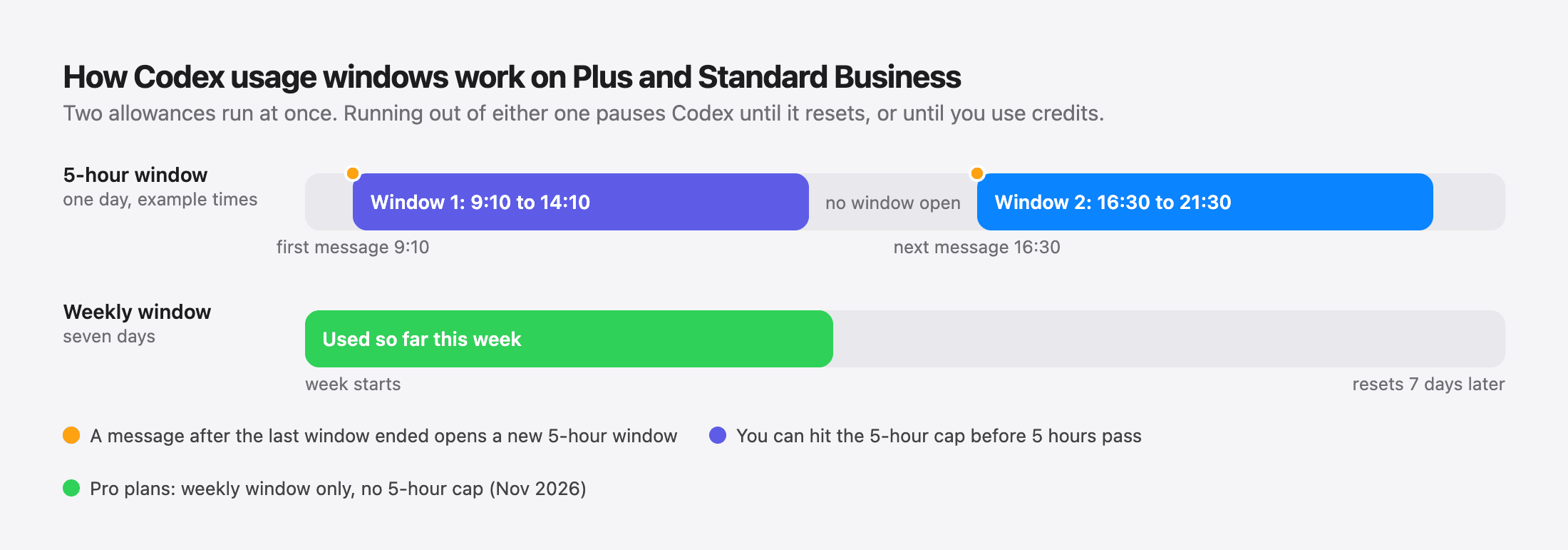
On plans with both windows, they run side by side. The 5-hour window caps short bursts of heavy work; the weekly window caps your total for the week. Running out of either one stops new work until it resets. OpenAI's help center also points out that you can hit the 5-hour limit before five hours have passed, even with weekly usage left.
Local and cloud work share the same pool. In OpenAI's words, local messages and cloud chats share your plan's usage allowance, and cloud tasks may use more of it than local messages.
Codex limits by ChatGPT plan
This is how OpenAI describes each plan in its Codex pricing page and help center as of November 2026:
| Plan | 5-hour window | Weekly window | When you run out |
|---|---|---|---|
| Free and Go | Codex for quick or lightweight tasks; no numbers published. No Codex cloud. | Wait, or use an API key; credits only for some accounts | |
| Plus ($20/month) | Yes | Yes | Credits, a paid reset where offered, or an API key |
| Pro ($100, $200 or $500/month) | None at the moment | Yes | Credits, a paid reset where offered, or an API key |
| Business, Standard seat | Yes, same limits as Plus | Yes | Workspace credits, if your admin allows |
| Enterprise and Edu, flexible pricing | No fixed rate limits; usage scales with workspace credits | Workspace credits | |
| Enterprise and Edu, no flexible pricing | Roughly the same per-seat limits as Plus for most features | Ask your admin | |
Two things to know about that table. First, it moves: OpenAI removed the 5-hour window for Plus in July 2026 and brought it back on 25 August 2026, saying it would keep the 5-hour limit off for Pro "for the upcoming months". Second, ChatGPT Business also has Premium seats, which OpenAI says include more usage than Standard seats and aren't subject to a 5-hour limit.
How many messages do you get?
OpenAI doesn't give a single number, because a "message" can be a one-line fix or an hour of agent work. Instead it publishes estimated ranges of local messages per 5-hour window for Plus and Standard Business. As of November 2026:
| Model | Local messages per 5 hours (estimate) |
|---|---|
| GPT-6 Astra | 5 to 45 |
| GPT-6 Sol | 15 to 150 |
| GPT-6.1 Sol | 15 to 160 |
| GPT-6.1 Terra | 35 to 285 |
| GPT-6 Luna | 350 to 3,000 |
OpenAI is clear that these are estimates, not fixed limits: where you land depends on the model, how big the task is, how much context it carries, reasoning effort, tool use and caching. Speed modes matter too. Per the same page, Fast mode uses included usage 2.5 times as fast as Standard, and Ultrafast on GPT-6 Astra and GPT-6.1 Sol uses it 8 times as fast. OpenAI doesn't publish matching ranges for Pro or for cloud tasks.
How to check your Codex usage
In the Codex CLI: /status
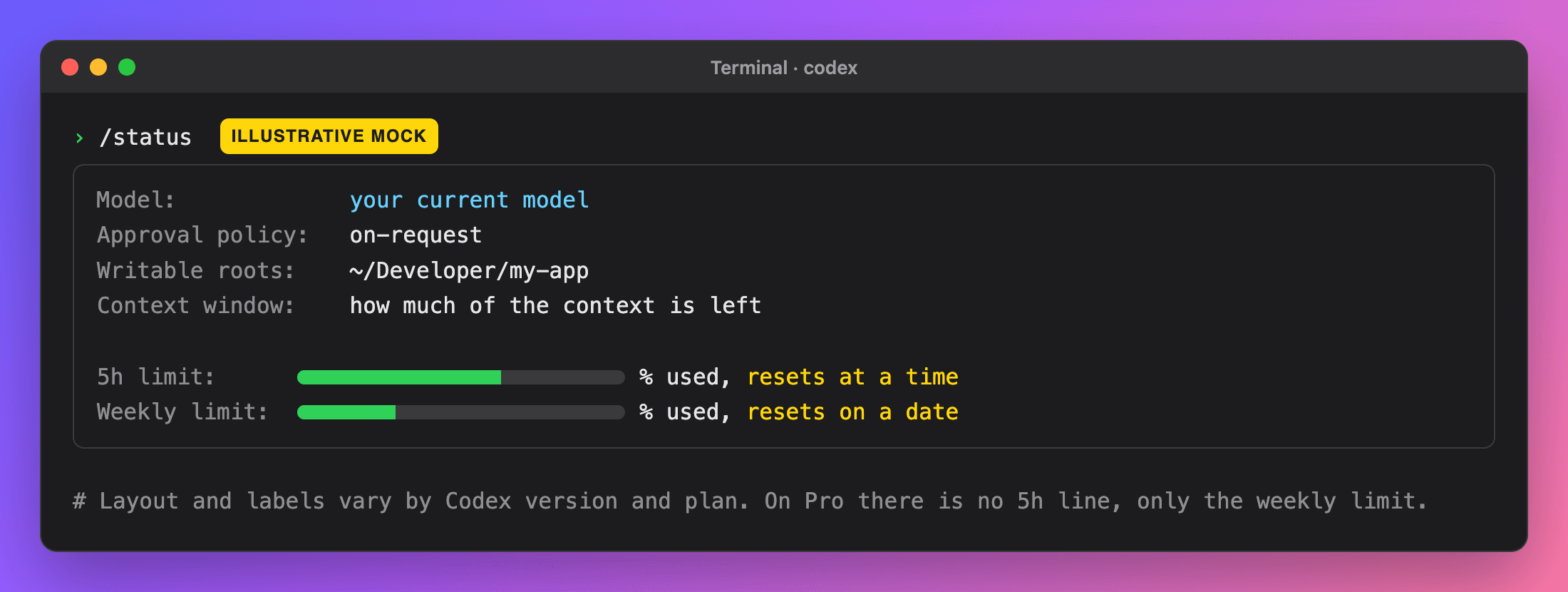
Type /status in any Codex session. OpenAI's docs say it displays the session configuration and token usage (active model, approval policy, writable roots and how much context is left), and the pricing page says it's how you see your remaining limits during an active CLI session. If it doesn't show limits yet, send a message first so the session has talked to your account.
In the Codex CLI: /usage
/usage opens a usage menu. From there you can view your ChatGPT token activity or redeem a rate-limit reset you've earned. You can also jump straight to a view:
/usage            # opens the usage menu
/usage daily      # token activity by day
/usage weekly     # token activity by week
/usage cumulative # total token activity
If you'd rather not type a command, the CLI's status line can show rate limits along the bottom of the screen; OpenAI's slash command docs list rate limits as one of the items you can put there.
On the web: the Codex usage dashboard
- Open chatgpt.com/codex/settings/usage while signed in to the same ChatGPT account Codex uses.
- Look at what's left in each window and when it resets.
- Check it every week or two, as OpenAI suggests, to get a feel for your pace before you hit a wall.
The Codex desktop app also has Usage settings, which is where eligible accounts can buy a reset.
When does the Codex limit reset?
- The 5-hour window doesn't run on clock hours. A new window starts when you send your first Codex or ChatGPT Work message after the previous one has ended, and lasts five hours from there. So if your first message is at 9:10, that window ends at 14:10; if you then don't touch Codex until 16:30, the next window runs 16:30 to 21:30.
- The weekly window resets seven days after your weekly period started. Your dashboard shows the exact date.
- Early resets. OpenAI occasionally resets limits for free, and some promotions and referral offers give you a banked reset you can use later from
/usage. A full banked reset refreshes both windows; used when only the 5-hour window is spent, it can restore that one without restarting your week.
What happens when you hit the Codex limit
If you run out in the middle of a turn, OpenAI says the agent can keep working on that turn, subject to fair use limits. New work stops after that. Your options, roughly from cheapest:
- Wait for the reset. Check the time with
/statusor the dashboard. - Use credits. Your plan's included usage is used first; after that, Codex can draw from a ChatGPT credit balance so you keep working without changing plans. Plus and Pro users can buy credits; Business, Edu and Enterprise workspaces on flexible pricing buy workspace credits.
- Buy an instant reset. Eligible personal Plus and Pro accounts can buy one on ChatGPT web or the Codex desktop app, from Usage settings or the weekly-limit banner. It restores both the 5-hour and weekly allowances immediately, can't be saved for later, and starts a new weekly period with your next request. It isn't offered on Free, Go, Business, Enterprise or Edu, and OpenAI generally doesn't refund it.
- Switch to an API key. OpenAI says anyone can run extra local chats with an API key, charged at standard API rates. Sign in with your key:
printenv OPENAI_API_KEY | codex login --with-api-key
codex login status   # shows which sign-in Codex is using
Run codex login again later to go back to your ChatGPT sign-in once your window resets. One thing that won't help: OpenAI support doesn't reset usage limits.
How to make your Codex usage last longer
These come from OpenAI's own advice on its pricing page:
- Keep prompts focused and cut context the task doesn't need.
- Point Codex at the right files rather than the whole repo, and narrow date ranges for anything time-based.
- Say what you want back: the audience, format and length of the answer.
- Trim AGENTS.md, and move instructions into nested AGENTS.md files closer to the code they apply to.
- Turn off MCP servers you aren't using, since each one adds context to every request.
- Use Standard speed unless you need Fast, given the multipliers above.
For long sessions, /compact summarises the chat so far to free up context, which OpenAI recommends after long runs. If you also use Claude Code, its limits work differently; see our guide to Claude Code usage limits.
Watching Codex usage from the notch
Typing /status works, but only when you remember to. NotchDodo is a Mac app that turns the MacBook notch into a small dashboard, and its AI Usage panel covers Codex CLI alongside Claude Code and Gemini CLI. Here's exactly what it does with Codex, and what it doesn't.
What it shows
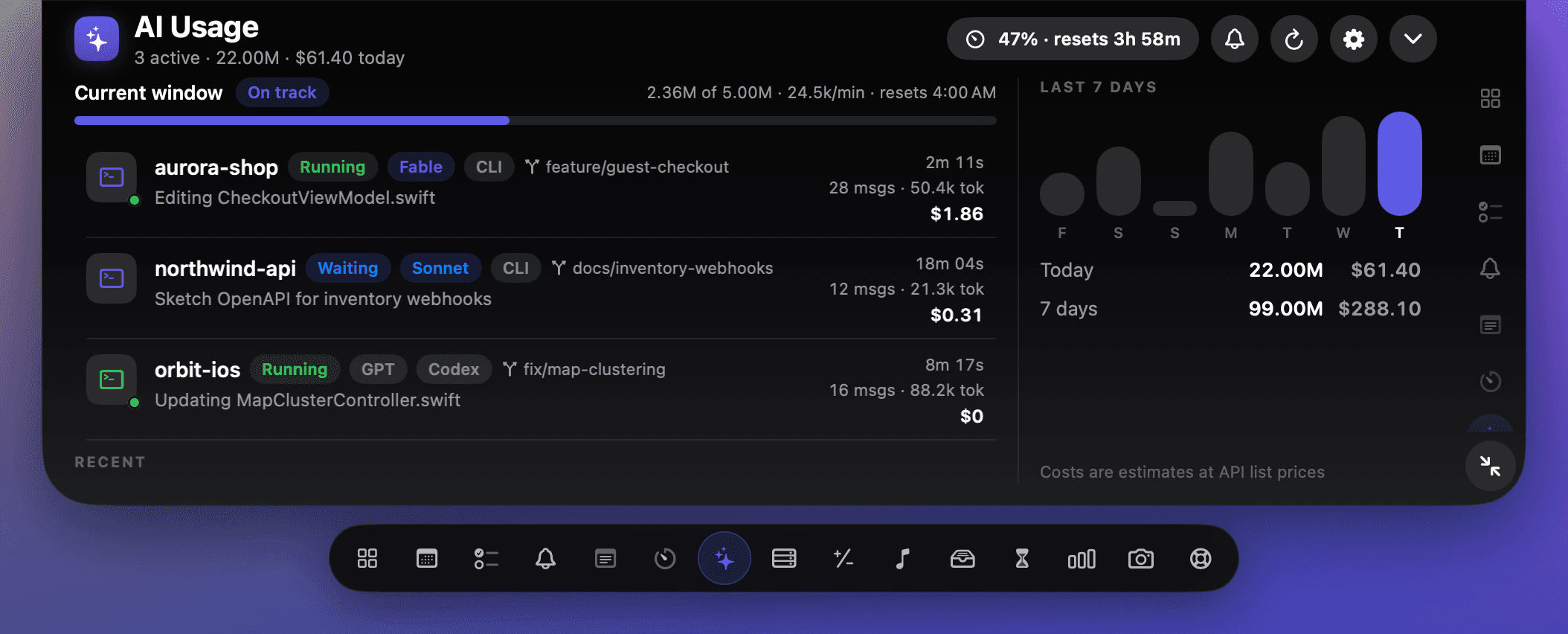
- Every Codex session today, read from the session logs Codex CLI already writes to
~/.codex/sessionson your Mac. Each row shows the project folder, git branch, whether it's Running, Waiting or Done, message count, tokens and time worked. - Codex tokens in your totals for today and a seven-day chart.
- A 5-hour window gauge with tokens used against a budget, burn rate per minute and the time the window ends. The notch flashes when you pass 80% and 100% of that budget, once per window.
- A live activity in the notch while an agent is running.
What it can't show
- OpenAI's own numbers. The window gauge is NotchDodo's estimate from your local token counts, measured against a budget you set in Settings (or one it picks from your heaviest past window). It isn't the percentage OpenAI shows in
/status, and it has no weekly limit. It also pools Claude Code and Codex tokens into one window. - Cloud tasks and Codex on the web, since they don't write logs to your Mac.
- Cost. Codex sessions show $0, because plan usage isn't billed per token.
Separately, NotchDodo keeps your Mac awake while Codex, the Codex app or another agent is working, and can put it to sleep once they finish while the screen is locked. More about keeping your Mac awake for AI agents. For Claude Code there are also notch alerts when it needs your approval.
Which way to check should you use?
| /status | /usage | Usage dashboard | NotchDodo | |
|---|---|---|---|---|
| OpenAI's remaining limits | Yes | No, token activity | Yes | No, a local estimate |
| Weekly limit | Yes, on plans that have one | Weekly token totals | Yes | No |
| Per-session detail | Current session | No | No | Every local session today |
| Counts cloud tasks | Yes, shared allowance | Not stated | Yes, shared allowance | No |
| Visible without asking | No | No | No | Yes, in the notch |
| Cost | Free, built in | Free, built in | Free | $9.99 one-time, with 17 more tools |
For the real number, /status and the dashboard are the source of truth, because only OpenAI knows how it weighs each message. If you live in the terminal and want a constant sense of how hard you're pushing, with every session in one place, a glance at the notch saves you asking.
More guides
- Claude Code usage limits explained: the 5-hour window, weekly limits, and how to check what's left: How Claude Code usage limits work on Pro, Max and Ultra: the 5-hour session window, the weekly limit and when each resets, what happens at the limit, and how to check what's left with /usage, claude.ai, ccusage or NotchDodo.
- Menu bar icons hidden behind the MacBook notch? 5 ways to get them back: Why Mac menu bar icons disappear behind the MacBook notch and 5 ways to get them back: Command-drag and Menu Bar settings, a spacing command, macOS 27's built-in button, Bartender or free managers like Ice and Thaw, and NotchDodo.
- Dynamic Island for Mac: how to get one on your MacBook in 2026: Does a Mac have a Dynamic Island? Only the new OLED MacBook Pro. Here's how to get one on any MacBook with a notch app: setup steps, free options and fixes.
- How to keep your MacBook awake with the lid closed (and when you shouldn't): Keep a MacBook awake with the lid closed: Apple's closed-display (clamshell) mode with an external monitor, pmset disablesleep, Amphetamine, why caffeinate can't do it, and the safer lid-open way to run Claude Code or scripts overnight.
- How to stop your Mac sleeping while a download or script runs: Four ways to keep a Mac awake until a download, backup or script finishes: a System Settings switch, the caffeinate command, free apps like Amphetamine, and NotchDodo. Plus what to do about the lid.
- Best notch apps for Mac in 2026: 8 apps compared: The best MacBook notch apps in 2026 compared on price, features and who each is for: NotchDodo, Droppy, Notchy, Boring Notch, Alcove, NotchNook, DynamicLake and Seam.
- Why is my Mac fan so loud? How to find the app and check CPU temperature: Find the app making your Mac fan loud with Activity Monitor or Terminal, check CPU temperature and fan speed on Apple silicon and Intel, and quiet it down.
- How to get notified when Claude Code needs your approval on Mac: Three ways to get an alert when Claude Code is waiting for permission or your next prompt on a Mac: the terminal bell, a Claude Code hook with a native macOS notification, and an alert in your MacBook notch.
- Claude Code usage tracker for Mac: See Claude Code tokens, estimated cost and your 5-hour window in the MacBook notch. Reads local logs, uploads nothing. Codex and Gemini CLI too.
- NotchNook alternative: NotchDodo vs NotchNook: An honest side-by-side of the two notch apps: tools, live activities, AI agent tracking, privacy and price.
- NotchDodo vs Boring Notch: What you get with the free, open source Boring Notch and what NotchDodo adds on top: calendar, Pomodoro, Claude Code alerts and more.
Sources
- OpenAI: Codex pricing and usage limits (plans, message ranges, speed modes, credits, /status, tips)
- OpenAI: Codex CLI slash commands (/status, /usage, /compact, status line)
- OpenAI: Codex CLI commands (codex login with an API key)
- OpenAI Help Center: Using Codex with your ChatGPT plan
- OpenAI Help Center: How resets work in Codex
- OpenAI Help Center: Paid weekly Work and Codex rate limit resets
- OpenAI Help Center: Using credits for flexible usage in ChatGPT
- OpenAI Help Center: ChatGPT Business models and limits
- 9to5Mac: OpenAI restores 5-hour Codex and Work limits for ChatGPT Plus users (24 August 2026)
Codex, ChatGPT and OpenAI are trademarks of OpenAI. Mac, MacBook and macOS are trademarks of Apple Inc. NotchDodo is an independent app and is not affiliated with OpenAI or Apple.