

"preferredNotifChannel": "terminal_bell" in other terminals, or add a Notification hook to ~/.claude/settings.json that runs osascript. For an alert you can't miss, NotchDodo shows it in your MacBook's notch with one click.When does Claude Code send a notification?
Claude Code has a Notification event that fires when Claude needs something from you and you appear to be away from the terminal. The type of notification tells you why:
permission_prompt: Claude wants to run a tool or command and needs your approval. It fires after the prompt has waited about six seconds.idle_prompt: Claude finished responding about 60 seconds ago and you haven't typed since.elicitation_dialog: an MCP server opened a form that needs your answer.
Separately, the Stop event fires every time Claude finishes a turn, which is how you get a "done" alert. Everything below builds on these events. The full list and exact timing are in Anthropic's Claude Code hooks reference.
Method 1: built-in notifications and the terminal bell
The quickest fix needs no hooks at all. Claude Code sends a desktop notification on its own in Ghostty, Kitty and iTerm2. If you use one of those, you may only need to let it through.
iTerm2
- Open Settings → Profiles → Terminal.
- Check Notification Center Alerts.
- Click Filter Alerts and enable Send escape sequence-generated alerts.
Apple Terminal, Warp, the VS Code terminal and others
These don't get the desktop notification, but you can make Claude Code ring the terminal bell instead. Add this to ~/.claude/settings.json:
{
  "preferredNotifChannel": "terminal_bell"
}
A bell is easy to set up but easy to miss: it's a sound or a bouncing Dock icon, it doesn't say which project is waiting, and Apple Terminal's audible bell may be turned off (check Settings → Profiles → Advanced → Audible bell). If you run Claude Code inside tmux, add set -g allow-passthrough on to ~/.tmux.conf so alerts reach the outer terminal.
Method 2: a Notification hook with a macOS alert
A hook is a shell command Claude Code runs on an event. A Notification hook that calls osascript gives you a native macOS notification in any terminal.
Step 1: add the hook
Open ~/.claude/settings.json (create it if it doesn't exist) and add this. It's the example from Anthropic's guide:
{
  "hooks": {
    "Notification": [
      {
        "matcher": "",
        "hooks": [
          {
            "type": "command",
            "command": "osascript -e 'display notification \"Claude Code needs your attention\" with title \"Claude Code\"'"
          }
        ]
      }
    ]
  }
}
If the file already has a hooks key, add "Notification" next to your existing events instead of replacing the whole object.
Step 2: let Script Editor show notifications
This is the step most people miss. osascript posts notifications as the Script Editor app, and if it doesn't have permission the command fails silently. Run this once in Terminal:
osascript -e 'display notification "test"'Then open System Settings → Notifications, find Script Editor and turn on Allow Notifications. Run the command again and you should see the test.
Step 3: check and test
Type /hooks in Claude Code. Your hook should appear under Notification. Edits to the settings file are picked up automatically. Now ask Claude to do something that needs permission, switch to another app, and within a few seconds you'll get an alert.
Make it more useful
An empty matcher fires on every notification type, including login messages. Limiting it to approvals and idle prompts, and adding a sound, makes it harder to miss:
{
  "hooks": {
    "Notification": [
      {
        "matcher": "permission_prompt|idle_prompt",
        "hooks": [
          {
            "type": "command",
            "command": "osascript -e 'display notification \"Claude Code is waiting on you\" with title \"Claude Code\" sound name \"Glass\"'"
          }
        ]
      }
    ]
  }
}
Claude Code passes the event to your hook as JSON on standard input, so you can show which project is waiting. This is what it sends:
{
  "session_id": "abc123",
  "transcript_path": "/Users/you/.claude/projects/.../transcript.jsonl",
  "cwd": "/Users/you/code/aurora-shop",
  "hook_event_name": "Notification",
  "message": "Claude needs your permission to use Edit",
  "title": "Permission Required",
  "notification_type": "permission_prompt"
}
If you have jq installed (brew install jq), this version puts the project folder in the title and Claude's message in the body:
{
  "hooks": {
    "Notification": [
      {
        "matcher": "permission_prompt|idle_prompt",
        "hooks": [
          {
            "type": "command",
            "command": "jq -r '\"display notification \\\"\" + .message + \"\\\" with title \\\"Claude Code: \" + (.cwd | split(\"/\") | last) + \"\\\"\"' | osascript"
          }
        ]
      }
    ]
  }
}"Stop" event. It fires every time Claude finishes a turn, so on short back-and-forth chats it can get noisy.Hooks run shell commands with your permissions, so only add commands you understand, and keep them quick. A notification hook should never block or slow Claude down.
Method 3: an alert in your MacBook notch
macOS notifications slide away after a few seconds and pile up in Notification Center. If you run agents all day, you want something that stays put until you've answered, at the one spot on your screen you always see.
That's what NotchDodo does. It turns the MacBook notch into a small dashboard, and its Claude Code alerts make the notch light up with the Claude mark the moment Claude needs you:


How to turn it on
- Install NotchDodo and hover the notch.
- Open AI Usage and click the bell in the top right.
- That's it. Alerts start with your next Claude Code session.

What it actually changes
NotchDodo uses the same hooks as Method 2, so there's nothing hidden. Clicking the bell adds one entry per event to ~/.claude/settings.json (after saving a backup next to it) that appends each event to a file in NotchDodo's folder:
"Notification": [
  {
    "matcher": "permission_prompt|idle_prompt|elicitation_dialog",
    "hooks": [{ "type": "command", "timeout": 5,
      "command": "{ cat; echo; } >> \"$HOME/Library/Application Support/NotchDodo/claude-events.jsonl\" 2>/dev/null; exit 0" }]
  }
],
"Stop": [ ...the same command, so you also see Done... ]
The command always exits successfully, so it can never slow down or break Claude Code, even if NotchDodo is closed. It doesn't listen to your prompts, nothing leaves your Mac, and clicking the bell again removes the hook and leaves your other settings untouched.
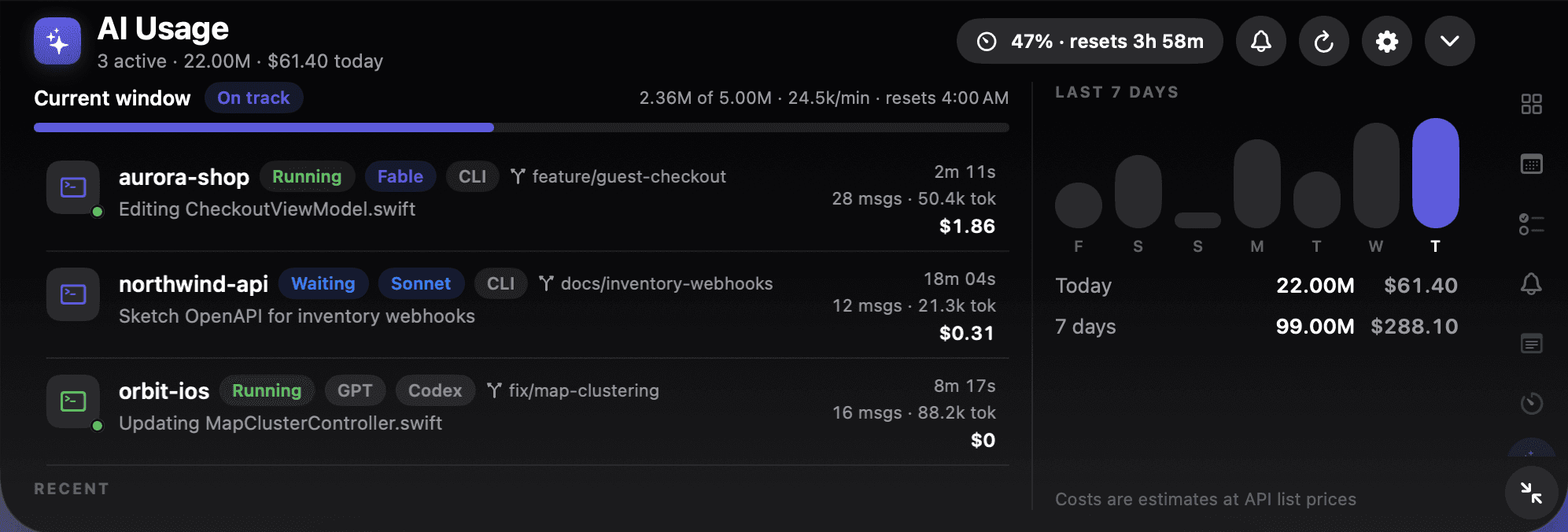
Because NotchDodo also reads Claude Code's session logs, the alert clears by itself once you approve or type, and it knows which project is waiting. The same panel shows every running session, the file Claude is editing and your 5-hour window. There's more on that in our Claude Code usage tracker guide.
Which method should you use?
| Terminal bell | macOS notification hook | NotchDodo notch alert | |
|---|---|---|---|
| Setup | One line of JSON | A hook plus a permission | One click |
| Where it shows | Sound or Dock bounce | Banner that slides away | The notch, until you answer |
| Says which project | No | With jq | Yes |
| Approve vs waiting vs done | No | With separate hooks | Yes |
| Clears when you answer | Not needed | No | Yes |
| Works in any terminal | Most | Yes | Yes |
| Cost | Free | Free | $4.99 one-time |
If you only run Claude Code now and then, Method 1 or 2 is plenty. If agents run in the background most of your day, an alert that stays in the notch until you've dealt with it is what stops the "it was waiting for 20 minutes" moments.
Troubleshooting
- Nothing happens at all: type
/hooks. If your hook isn't listed, the JSON is probably invalid (a missing comma or quote). Paste the file into a JSON validator. - The hook runs but no banner appears: give Script Editor notification permission (Method 2, step 2), and check that a Focus mode or Do Not Disturb isn't on.
- Alerts arrive late: that's by design. Approvals wait about six seconds and idle alerts about 60 seconds, so you aren't pinged while you're looking at the terminal.
- No alerts inside tmux: add
set -g allow-passthrough onto~/.tmux.confand runtmux source-file ~/.tmux.conf. - A project behaves differently: project settings in
.claude/settings.jsonor.claude/settings.local.jsoncan add their own hooks. Check those files too.
More guides
- Claude Code usage tracker for Mac: See Claude Code tokens, estimated cost and your 5-hour window in the MacBook notch. Reads local logs, uploads nothing. Codex and Gemini CLI too.
- NotchNook alternative: NotchDodo vs NotchNook: An honest side-by-side of the two notch apps: tools, live activities, AI agent tracking, privacy and price.
- NotchDodo vs Boring Notch: What you get with the free, open source Boring Notch and what NotchDodo adds on top: calendar, Pomodoro, Claude Code alerts and more.
Sources
- Claude Code docs: Automate actions with hooks
- Claude Code docs: Hooks reference (Notification and Stop events)
- Claude Code docs: Configure your terminal (bell and notifications)
Claude is a trademark of Anthropic. NotchDodo is an independent app and is not affiliated with Anthropic.