NotchDodo was #4 Product of the Day on Product Hunt

The Dynamic Island for your MacBook.

Music, timers, today's calendar, files, notes and your AI agents, one hover above the menu bar.

Launch price for the first 50 customers. $14.99 after that.First 50 customers. Then $14.99.

One-time purchaseLifetime licence for 2 MacsEverything stays on your MacmacOS 14 Sonoma or laterWorks on Macs without a notch

One-time purchase2 MacsmacOS 14 or later

See it move.

Ninety seconds, no voice-over. The notch does the talking.

Eighteen tools. One hover.

Every tool is a page in the panel, with its own icon on the rail. Switch off the ones you don't use and they leave.

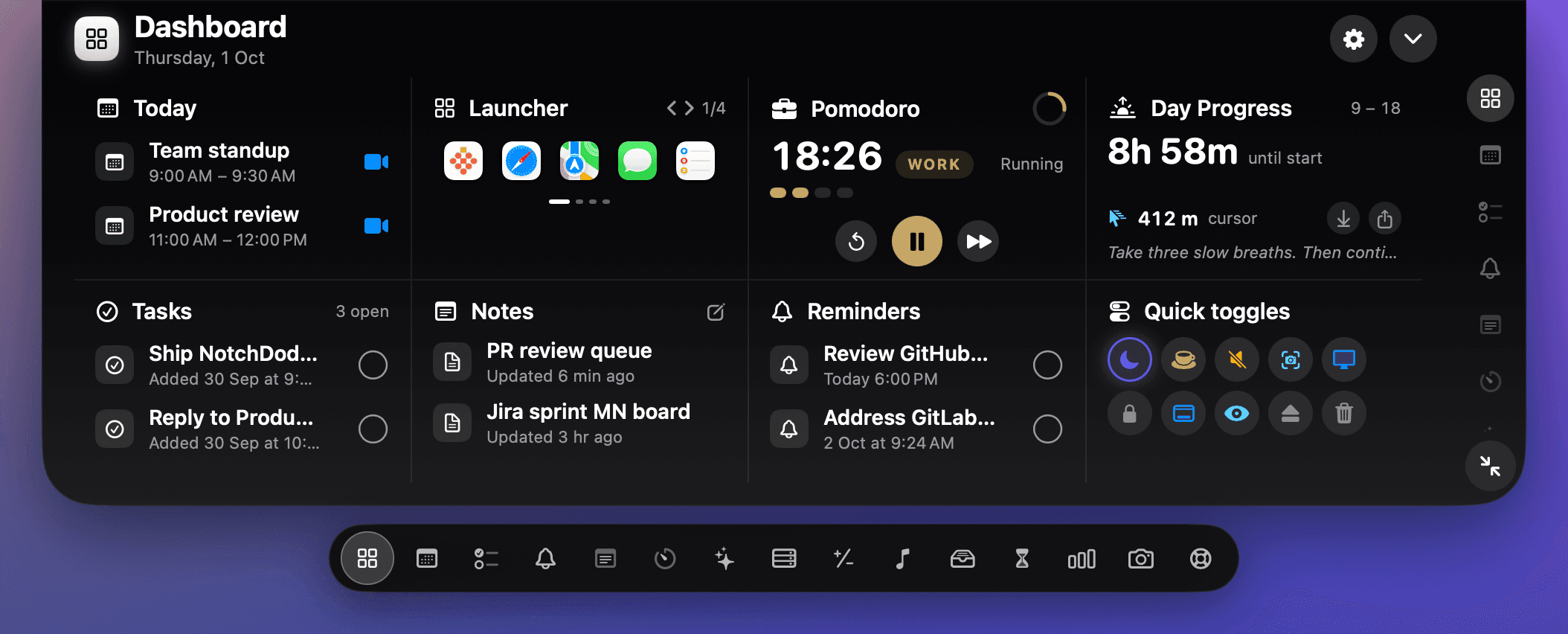
Dashboard

Your day, on one panel.

The home page of the notch. Eight tiles on a dark panel, separated by hairlines, showing what matters right now. You choose which eight, and in what order.

Open it once in the morning and you know the shape of the day. Open it during the day and the next thing is one click away.

  • Today, Tasks, Notes and Reminders in miniature, each one tap from its full tool.
  • Launcher shows the apps in your Dock, five at a time. Day Progress tracks the workday you set in Settings and rotates a short focus tip.
  • Quick toggles for Dark mode, Keep awake, Screenshot, Lock screen and Empty Trash.
  • Swap in Music, AI Usage, System, Shelf or Screen Time tiles, and reorder them from the gear on the Dashboard.
Dashboard in the NotchDodo panel
Pomodoro

A timer that lives where you look.

A watch-style dial with tick marks and a gold hand. Start a session and the countdown moves into the notch, so it stays in view while you work in any app.

Five modes cover the whole day: Work, Short break, Long break, Quick timer and Custom, all editable in Settings.

Focus sounds play rain, café chatter or white noise with each focus block and fade out when the break begins, so the sound becomes your cue to focus.

  • Every fourth completed session earns a long break, and the timer queues it for you.
  • Focus Target attaches the session to an event, reminder or task, so the timer knows what you are working on.
  • A stopwatch with laps for everything that is not a Pomodoro.
Pomodoro in the NotchDodo panel
AI Usage

Know what your agents are burning.

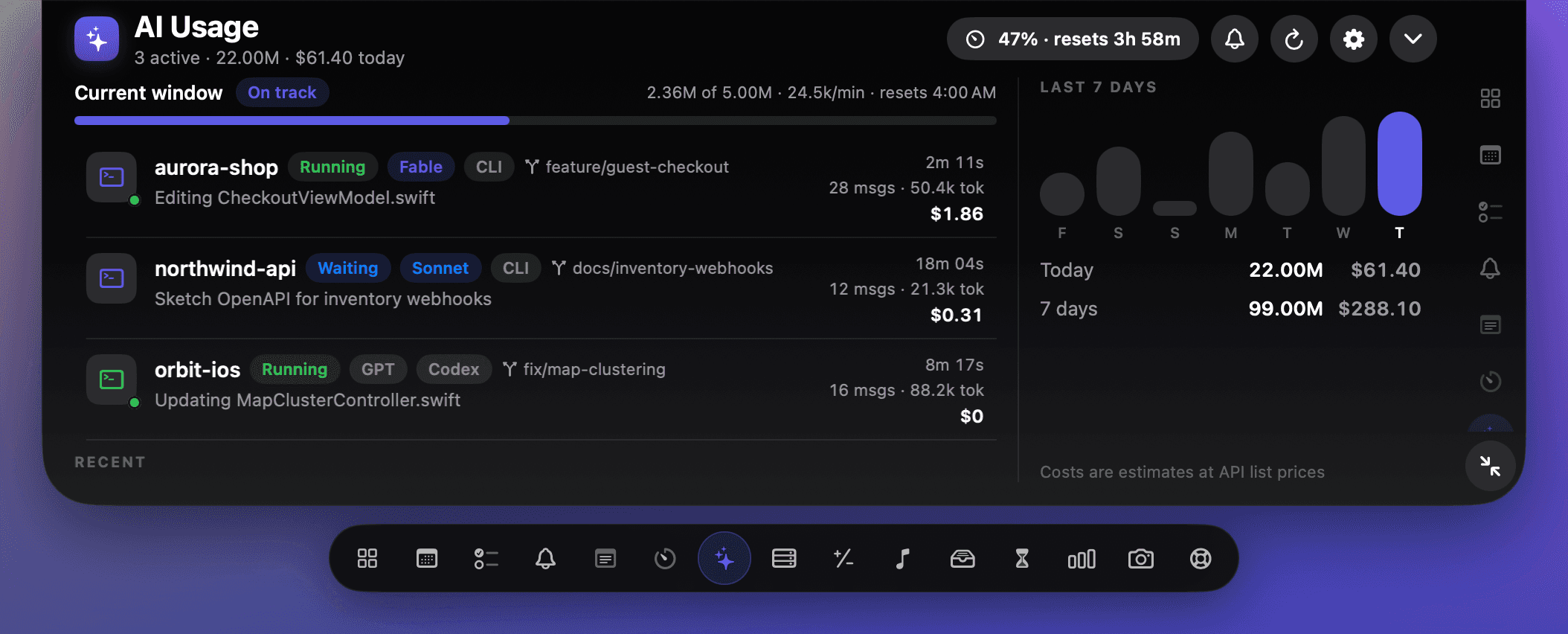
AI Usage reads the session logs Claude Code, Codex and Gemini CLI already keep on your Mac and turns them into a live picture: tokens today, estimated cost at API list prices, and the five-hour window with its budget bar, burn rate and reset time.

Every session shows its state, Running, Waiting or Done, along with the model, the git branch and the last prompt you typed.

  • Model tags for Fable, Opus, Sonnet, Haiku and Gemini, a CLI tag, and a seven-day chart.
  • While an agent runs, the notch shows a purple burn bar and the token count, and it flashes when the window crosses 80 and 100 percent.
  • The budget is learned from your largest past window, or set it yourself in Settings.
  • Turn on Claude Code alerts and the notch flashes when Claude needs your approval or is waiting for you.

Everything is read locally. No log ever leaves the Mac.

How the Claude Code usage tracker works

AI Usage in the NotchDodo panel
Dev Servers

Every localhost server, in one list.

Dev Servers shows every local server you're running, with the port, the project folder it was started in and the framework: Next.js, Vite, Django, Rails, Postgres and more.

Open one in your browser with a click, or stop it with another. The end of "port 3000 is already in use".

  • Found with macOS's own tools, and only your own processes. Nothing needs admin rights.
  • System services and ordinary apps are left out, and so are the private helpers your coding agents run, so stopping something never breaks a Claude session.
  • Add a Dev Servers tile to the Dashboard to keep them in view.
Dev Servers in the NotchDodo panel
Menu Bar

Find the icons hiding behind the notch.

When a lot of apps are running, menu bar icons slide behind the notch and vanish. Menu Bar lists every icon, marks the hidden ones, and opens any of them with a click.

On macOS 27 it uses the system's own reveal button, then clicks the icon you picked, so its menu opens where you'd expect.

  • Hidden icons are marked, so you see at a glance what the notch is covering.
  • Works for any app's icon, including custom pop-ups like Weather.
  • Needs Accessibility access, asked the first time you open it. Everything stays on your Mac.
Menu Bar in the NotchDodo panel
Clipboard

Everything you copied, one click away.

Copy something, then copy something else, and the first thing is usually gone. Clipboard keeps the last 20 things you copied, text, links, images and files, so you can open the notch and copy any of them again.

Pin the snippets you paste every day, like an address, a reply or a terminal command, and they stay at the top for good.

  • Click a row to copy it. The notch tucks away so you can paste straight in.
  • Passwords copied from password managers are never kept. Pause it any time from the header.
  • Shows which app each copy came from, with colour swatches for hex codes and file icons for files.
Clipboard in the NotchDodo panel
Today

Today's calendar, with a Join button.

Every event for the day in a list, with a details pane that shows duration, location, notes and a countdown to the next start.

Zoom, Meet, Teams, Webex and FaceTime links become one Join button, so you never hunt through an invite again.

  • Ten minutes before a call, the notch shows a countdown without being opened.
  • Five minutes before, it opens on your meeting with the Join button, then tucks away. Change the timing or turn it off in Settings.
  • Events come from every calendar you have enabled on the Mac.
  • Calendar access is asked for the first time you open the tab, never at launch.
Today in the NotchDodo panel
Reminders

Apple Reminders, ticked off from the notch.

Your real reminder lists, read through EventKit and synced back through iCloud. Nothing to import and nothing to keep in step.

  • Counts for overdue, due today and later, at a glance.
  • Quick add: type, press Return, and it lands in your default list.
  • Complete a reminder with one click and it is done everywhere.
Reminders in the NotchDodo panel
Tasks

A to-do list with no setup.

For the small things that do not deserve a project. Type, press Return, done. The list is kept on your Mac and nowhere else.

  • Open count and a progress bar for the day.
  • Done items stay in a history until you clear them.
  • Two of them show on the Dashboard so you see them without opening the tab.
Tasks in the NotchDodo panel
Notes

Notes that save as you type.

Keep as many notes as you like. The first line becomes the title, and everything is saved the moment you stop typing.

  • A list on the left, the editor on the right, New and Delete where you expect them.
  • Word and character counts, and the time of the last save.
  • Stored as plain files in your Application Support folder.
Notes in the NotchDodo panel
Music

Now Playing, where your eyes already are.

Artwork, a scrub bar and transport controls for Apple Music and the Spotify desktop app. While something plays, the notch shows the art and four moving bars.

  • Play, pause, previous and next without switching apps.
  • Drag the bar to scrub. The position keeps moving smoothly between updates.
  • Pause, and the compact art stays a minute before it steps away.

Browser playback, including the Spotify web player, is not supported yet.

Music in the NotchDodo panel
Shelf

Drag a file to the notch. Deal with it later.

A holding area for files. Drop them onto the notch from Finder and they wait there until you need them. Drag them back out into Mail or Slack, AirDrop the lot, or reveal them in Finder.

Downloads and screenshots land here too. A file downloading in Safari, Chrome or Firefox shows its progress in the notch, then appears on the Shelf when it finishes, and every new screenshot is waiting there to drag straight into Slack.

  • Drag out into any app that accepts files.
  • Right-click for Open, Reveal in Finder, AirDrop, Copy and Remove.
  • Hover an image and tap the wand to convert it to PNG or JPG, halve it, shrink it to 1920 px or compress it. The copy lands back on the Shelf.
  • Missing files are dimmed rather than silently dropped.
Shelf in the NotchDodo panel
Calculator

Type it. The answer is already there.

Maths with proper precedence, percentages the way people say them, and conversions for units and currencies. The result updates as you type and Return keeps it in a history.

  • Percentages: 20% of 150, 150 - 10%, 15% off 80.
  • Units for length, mass, temperature, volume, speed, area, time, data and energy. Currency uses the daily ECB rates.
  • ans reuses the last result, and quick chips fill in common conversions.
Calculator in the NotchDodo panel
Screen Time

Which apps had your day.

Active time per app, counted only while you are actually at the keyboard. Idle time, the lock screen and sleep are left out, so the numbers mean something.

  • Categories such as Development, Browsing and Communication, with a donut and a bar.
  • A Now card for the app in front of you, and a ranking of the day.
  • Insights for your average and longest stretch in one app.
  • Every Monday and on the 1st, a shareable Wrapped recaps your focus time, Pomodoros, cursor distance, meetings, top app and AI usage.
Screen Time in the NotchDodo panel
System Analytics

The machine, at a glance.

CPU, memory, storage, network, battery and free disk as tick gauges, in the style of a watch face. They sample only while the tab is open, so the app costs nothing when you are not looking.

  • Live values every two seconds while the panel is open.
  • Battery turns green while charging.
  • Network shows download and upload separately.
System Analytics in the NotchDodo panel
Mirror

A camera check before the call.

Hover, look, fix your hair, move on. A 4:3 preview from the built-in camera, mirrored the way you expect.

  • The camera starts when you open the tab and stops the moment the notch closes.
  • Camera access is asked for on first use only.
  • Works with external cameras when one is the default.
Dodo Run

A tiny game for while your agent works.

Dodo Run is an endless runner right in the notch. Press Space or click to jump the cactuses, and see how far you get as it speeds up.

It's built for the minutes Claude Code is busy. The moment Claude needs your approval, is waiting for you or finishes, the game pauses and the notch shows the alert instead.

  • Play any time from its tool, or tap Play while you wait in AI Usage when an agent is running.
  • Your best score is saved, and the game pauses by itself when you close the notch.
  • Give it a keyboard shortcut and it's one key press away.
Dodo Run in the NotchDodo panel
Support & Feedback

Talk to us from the notch.

Help, a review, general feedback, a feature request or a bug report. Write it in the panel and Continue opens an email with your macOS and app version already filled in.

  • Every message is read by a person.
  • Replies usually arrive within a day.
  • App help opens the questions on this page.
Support & Feedback in the NotchDodo panel

It shows up before you ask.

The notch stays black and silent until something is worth a glance. Then it grows a little, the way the island does on iPhone, and shrinks back when you're done.

Playing.

Album art on the left, moving bars on the right. Pause and it stays a minute, then steps away.

Focusing.

A running session shows the countdown and its ring. Break time turns it green.

Charging, and low battery.

Plug in and the notch says so for four seconds. Below twenty percent it warns you once.

Meeting soon.

Ten minutes before a call the countdown appears. Five minutes before, the notch opens on it with the Join button.

Agent running.

While Claude Code, Codex or Gemini CLI works, the tokens tick up over a purple burn bar.

Download.

A file downloading in Safari, Chrome or Firefox shows its progress, then lands on the Shelf.

Claude needs you.

When Claude Code wants approval or is waiting for your next prompt, the Claude mark pulses in the notch.

Timer done.

A quick timer ends with a chime and a tick in the notch, then gets out of the way.

Update ready.

When a new version of NotchDodo is out, the notch shows it once, and the Dashboard has the download.

Built the way the island was built.

Black where the hardware is black.

The notch band and the compact pill never change colour, so they merge with the camera housing. The panel below is a solid dark dashboard with hairline dividers, so it reads on any wallpaper.

Springs, not slides.

Every size change overshoots a touch and settles, the physics Apple uses on iPhone. Digits roll like a clock. Nothing fades in for decoration.

Only what you switch on.

Eighteen tools ship in the box, each one a keyboard shortcut away if you like. Turn off ten and the rail shows eight. Permissions are asked for when you open a tab, never on launch.

$4.99. Once.

Launch price for the first 50 customers. $14.99 after that.

No subscription and no account. Your licence key arrives by email and unlocks the download on 2 Macs.

  • Lifetime updates

    Every version, included.

  • 14-day refund

    One email, no questions.

  • Private by design

    Nothing leaves your Mac except the licence check.

macOS 14 Sonoma or later on Apple silicon. Macs without a notch get a simulated one.

Questions

Does it work on a Mac without a notch?

Yes. On an iMac, an external display or an older MacBook the app draws a small black island at the top centre of the screen and everything behaves the same.

Which Macs and macOS versions?

macOS 14 Sonoma or later on Apple silicon. Macs without a notch get a simulated one.

Does it need an account, or send my data anywhere?

No account. Tasks, notes, the Shelf, screen time, AI usage and your Wrapped stay on your Mac. The app only goes online to check your licence (when you activate it and about once a week), to check for updates, once if you activate a trial key, for exchange rates if you convert currencies in the calculator, and for Spotify album art while Spotify plays. None of it carries anything about you or what you do.

Will it get in the way of my video calls?

No. While another app is using your camera, hovering the notch won't open it and timers won't pop it open over your call. Click the notch if you want it. You can also hide NotchDodo in full-screen apps in Settings.

Can it tell me when Claude Code needs me?

Yes. Turn on Claude Code alerts with the bell in AI Usage and the notch flashes with the Claude mark when Claude wants approval or is waiting for your next prompt, and shows a quick Done when a turn finishes.

Can I choose what's on the Dashboard?

Yes. Pick any eight of fourteen tiles, including Music, AI Usage, System, Shelf, Screen Time and Dev Servers, and put them in the order you like. Click the gear on the Dashboard.

Which AI tools does AI Usage support?

Claude Code, the Codex CLI and Gemini CLI. It reads the session logs they keep locally, so there is nothing to connect and no API key to paste. Cursor keeps its usage on its own servers, so it can't be read from your Mac.

Which music apps does Now Playing support?

Apple Music and the Spotify desktop app. Browser playback such as YouTube is on the list.

Does the Spotify web player work?

Not yet. Now Playing talks to the Spotify desktop app. Playback in a browser tab is not detected for now.

Which browsers work with Downloads to Shelf?

Safari, Chrome, Edge, Brave and Firefox. The notch shows the download's progress and the finished file appears on the Shelf.

How many Macs can I use one licence on?

2. Deactivate on one Mac from Settings and the seat is free for another.

What if it isn't for me?

Email info@authoritymartmedia.com within 14 days and you get a full refund.

Is it on the App Store?

No. It is a direct download from notchdodo.com. When a new version is out, the notch tells you and one click downloads it, with no waiting on store review.

Can it show the menu bar icons hidden behind the notch?

Yes. The Menu Bar tool lists every menu bar icon, marks the ones the notch is covering, and opens any of them with a click. It needs Accessibility access the first time.

Can I open a tool with a keyboard shortcut?

Yes. In Settings, Shortcuts, give any tool its own shortcut, like ⌃⌥S for the Shelf, plus one for the notch itself. Press it from anywhere to open NotchDodo on that tool, and again to close it.

Does it keep a clipboard history?

Yes. The Clipboard tool keeps the last 20 things you copied, text, links, images and files, and copies any of them again with one click. Pin the snippets you paste every day. Passwords copied from password managers are never kept, and the history stays on your Mac.

Can it play background sounds while I focus?

Yes. Pick rain, café or white noise in the Pomodoro. It starts with each focus block, fades out when the break begins, and there's a volume slider right beside it. The sounds are made on your Mac, so nothing downloads and they never loop.

Is there really a game?

Yes. Dodo Run is a tiny endless runner in the notch, made for the minutes Claude Code is busy. It pauses the moment Claude needs you, and you can play it any time.

What's new?

New tools ship every few days. Every update is listed at notchdodo.com/changelog.